Quick tour video (about 2 minutes, no sound): home page → Merge → Split → Rotate → Compress → OCR → Watermark → Sign. Scroll down for the written instructions.
1. Introduction
Stirling PDF is an open-source PDF platform that the company hosts on its internal network. It offers more than 50 common PDF operations (merge, split, convert, OCR, encrypt, sign, watermark, compress and more), all in your web browser, with no software to install.
Why a self-hosted Stirling PDF?
- Files stay inside the company: All processing happens on company servers. Confidential documents such as contracts and financial reports are never uploaded to outside services (such as Smallpdf or iLovePDF).
- No usage limits: Unlike free online tools, there is no daily limit on the number of jobs or on file size.
- No watermarks: Output files are clean, with no "Processed by XXX" stamp added.
- Batch processing: You can process several files at once.
- Chinese OCR: Scanned PDFs can be turned into searchable text.
Platform information:
| Item | Details |
|---|---|
| URL | https://pdf.micro-ip.com |
| Sign-in | Not required (use it directly on the company network) |
| Supported browsers | Chrome / Edge / Firefox / Safari |
| Interface language | Traditional Chinese (default) |
| File size limit | About 2 GB per file; normal files are well within this |
2. Opening the Platform
Open your browser and go to:
https://pdf.micro-ip.com
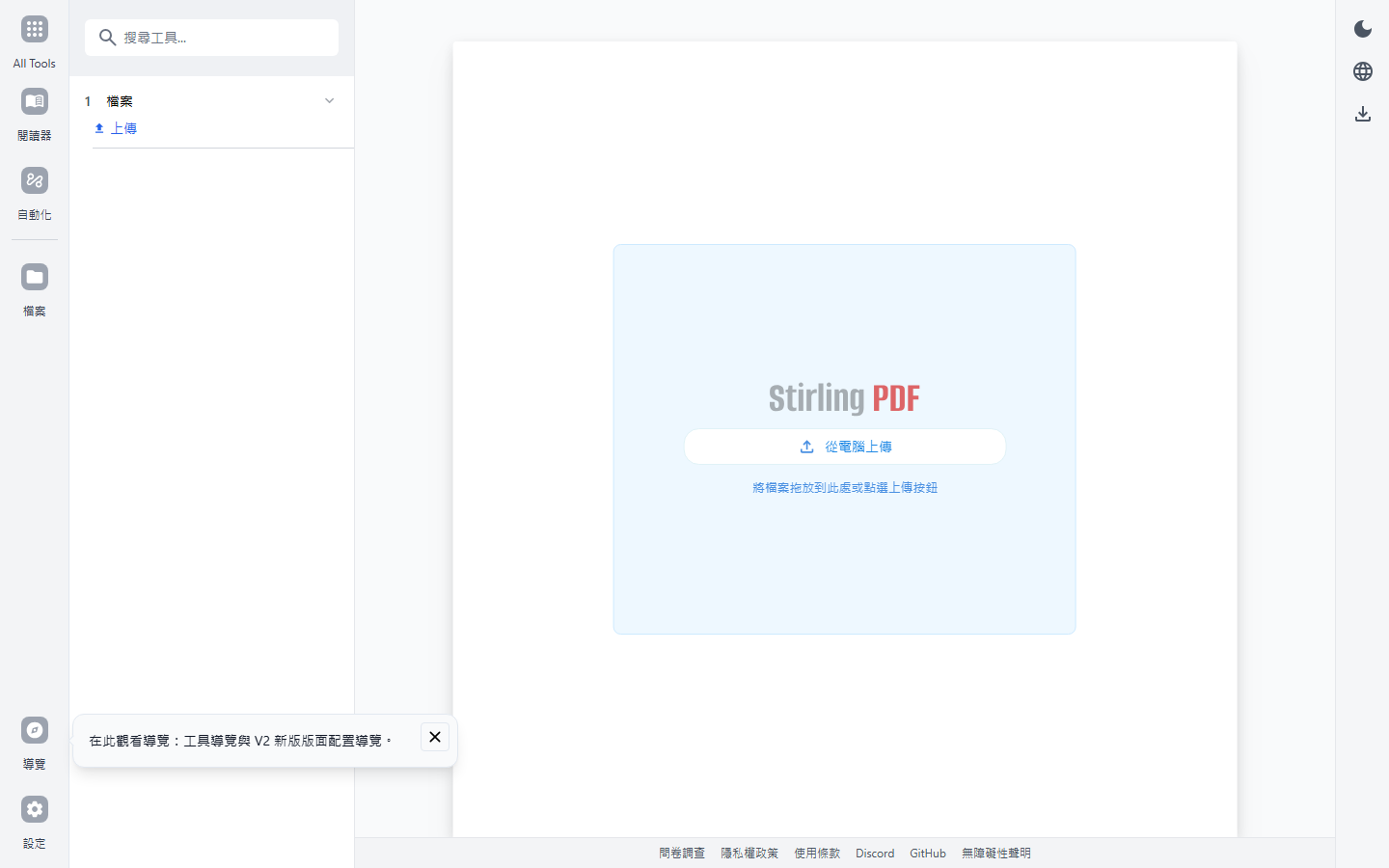
The first time you visit, a "Welcome to Stirling" (「歡迎使用 Stirling」) tour window appears. You can close it (✕ at the top right) or click Next (「下一步」) for a quick tour.
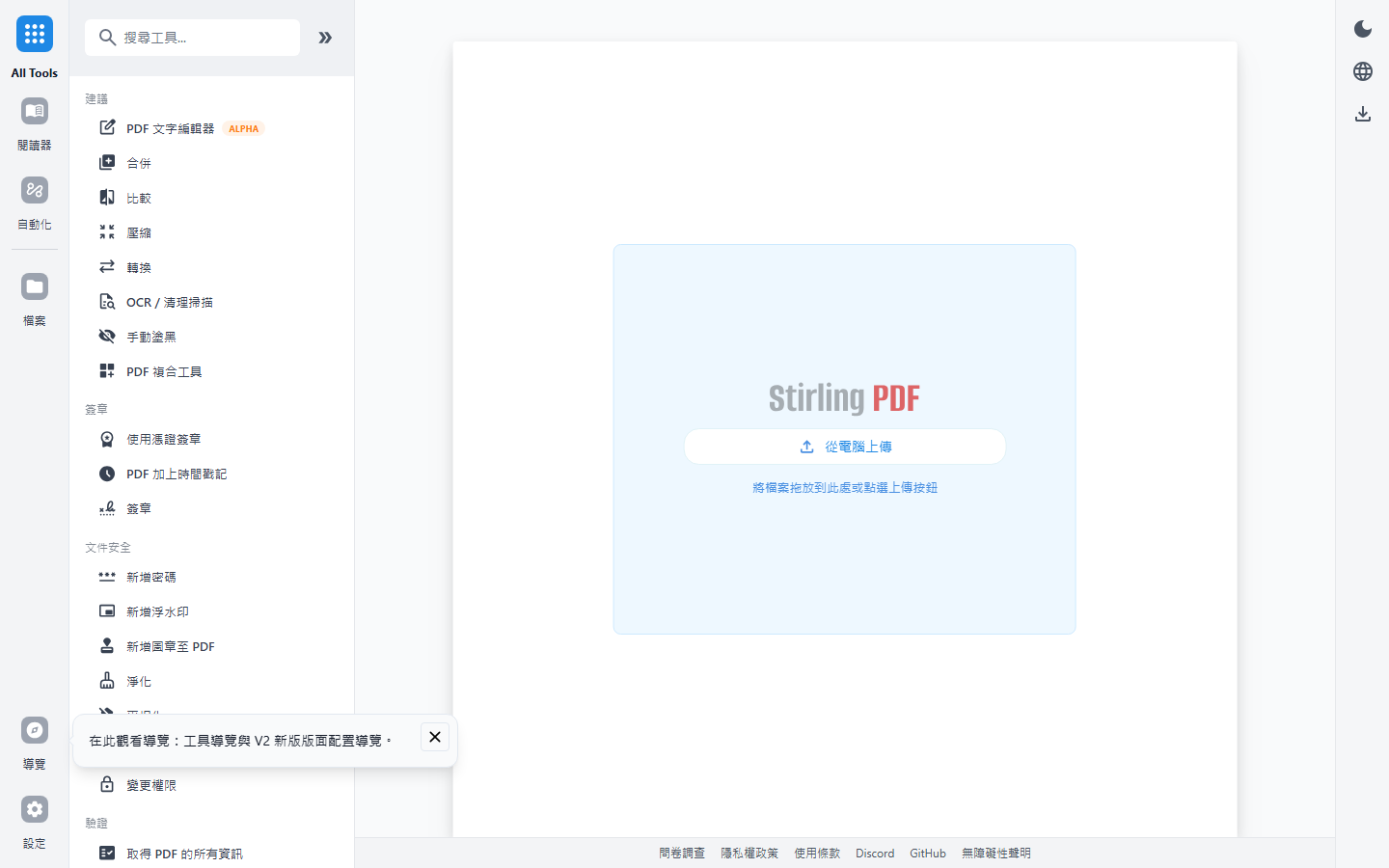
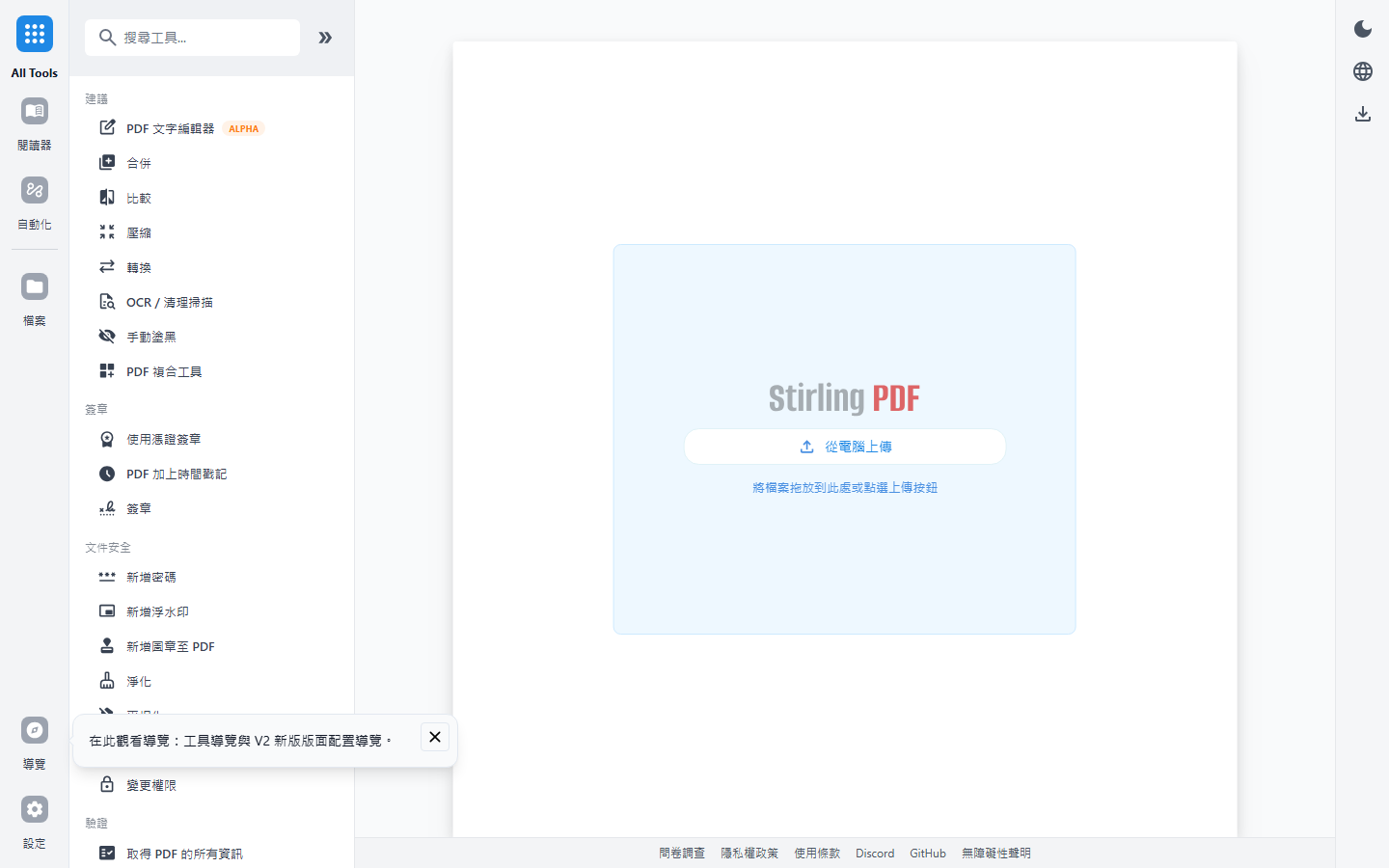
Interface overview
- Left toolbar (narrow column):
All Tools,Reader(閱讀器),Automate(自動化),Files(檔案),Tour(導覽),Settings(設定). - Left tool list (middle column): Lists all tools by category: Recommended, Page, Convert, Document Security and so on. Type a keyword in the search box at the top to find a tool quickly.
- Center workspace: Drag and drop files here, or click Upload from computer (「從電腦上傳」).
- Top right: Light/dark theme switch, language selection, download history.
Dark theme
Click the moon icon at the top right to switch to dark mode. Your preference is remembered in localStorage.
Privacy note: Files are not kept on the server after processing. Download your result right away; once you leave the page, the files are cleared.
3. Page Operations (Most Used)
3.1 Merge PDFs (Merge)
Combine several PDFs into one.
Steps:
- Left tool list → Merge (「合併」) (or URL:
/merge-pdfs) - Upload the files you want to merge (you can change the order later)
- Expand
Sort Filesto adjust the order - Click the Merge button
- Download the merged file
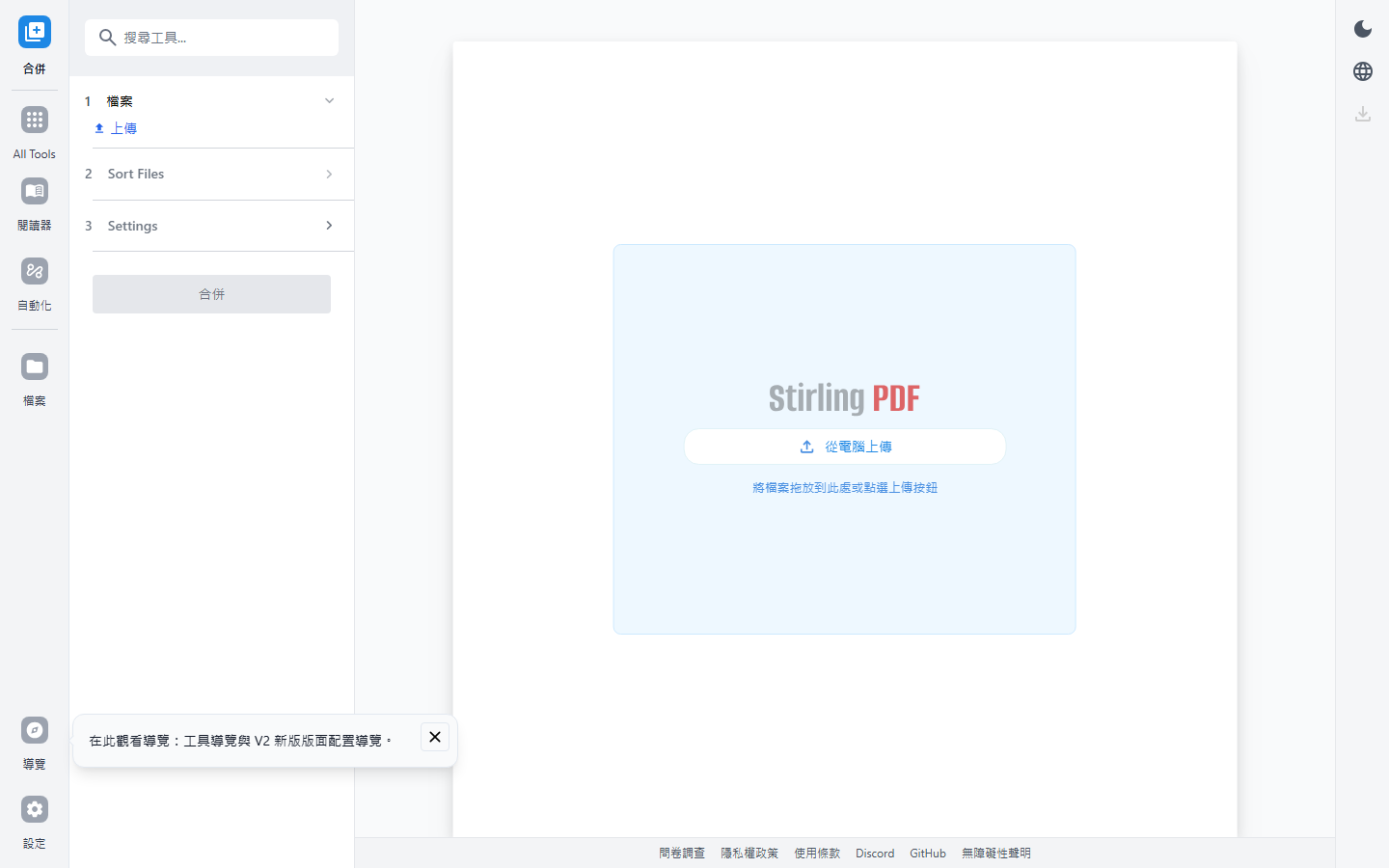
Tip: The output order follows the list from top to bottom. Drag the file cards to reorder them.
3.2 Split a PDF (Split)
Split one PDF into several.
Steps:
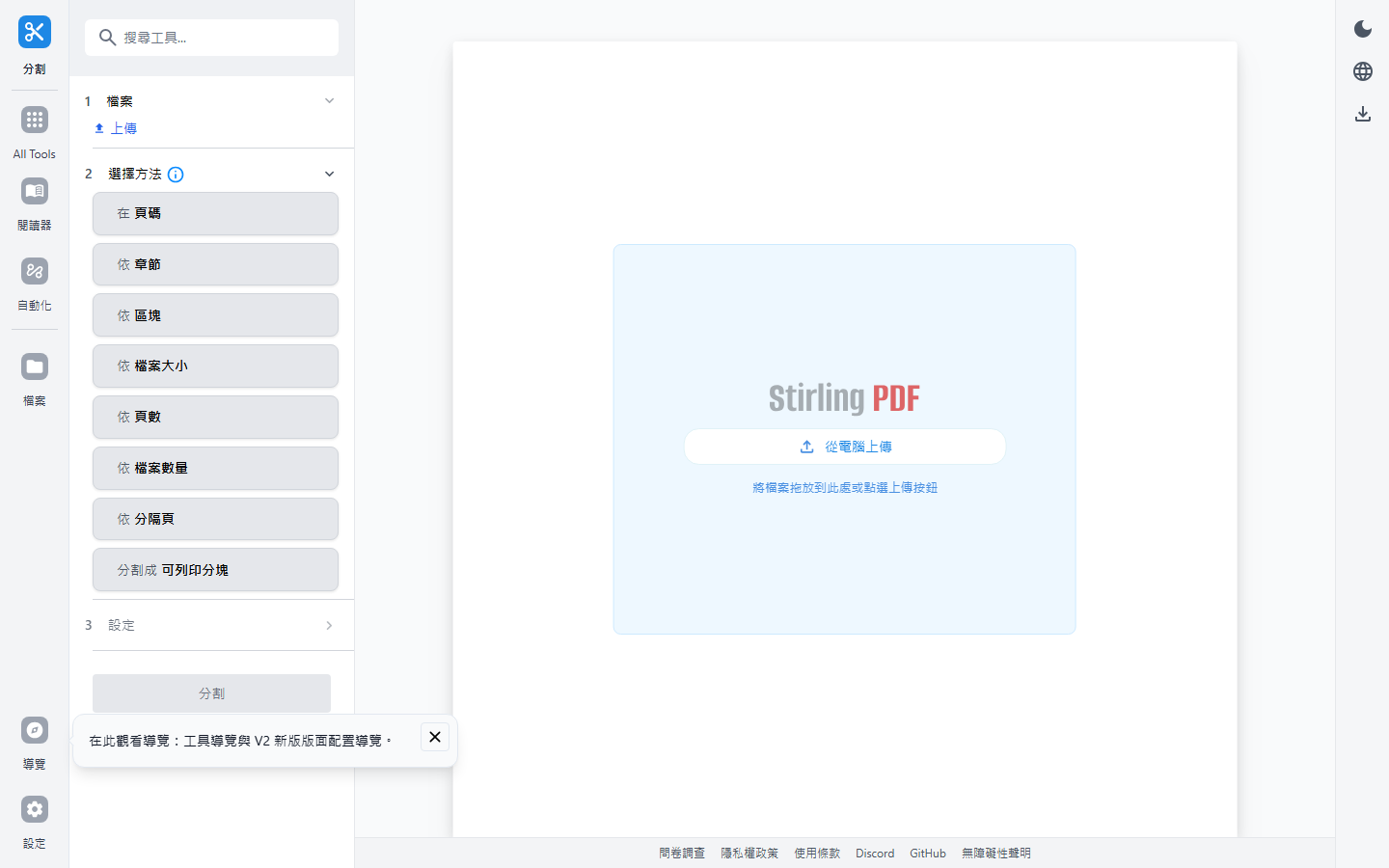
- Left tool list → Split (「分割」) (or URL:
/split-pdfs) - Upload the PDF
- Choose how to split:
- By page range: for example
1-3, 5, 7-10(produces 3 PDFs) - Every N pages: one file every 10 pages
- By bookmark: split by chapter
- By page range: for example
- Click Split
- Download the ZIP (it contains the split PDFs)
3.3 Reorder Pages (PDF Organizer)
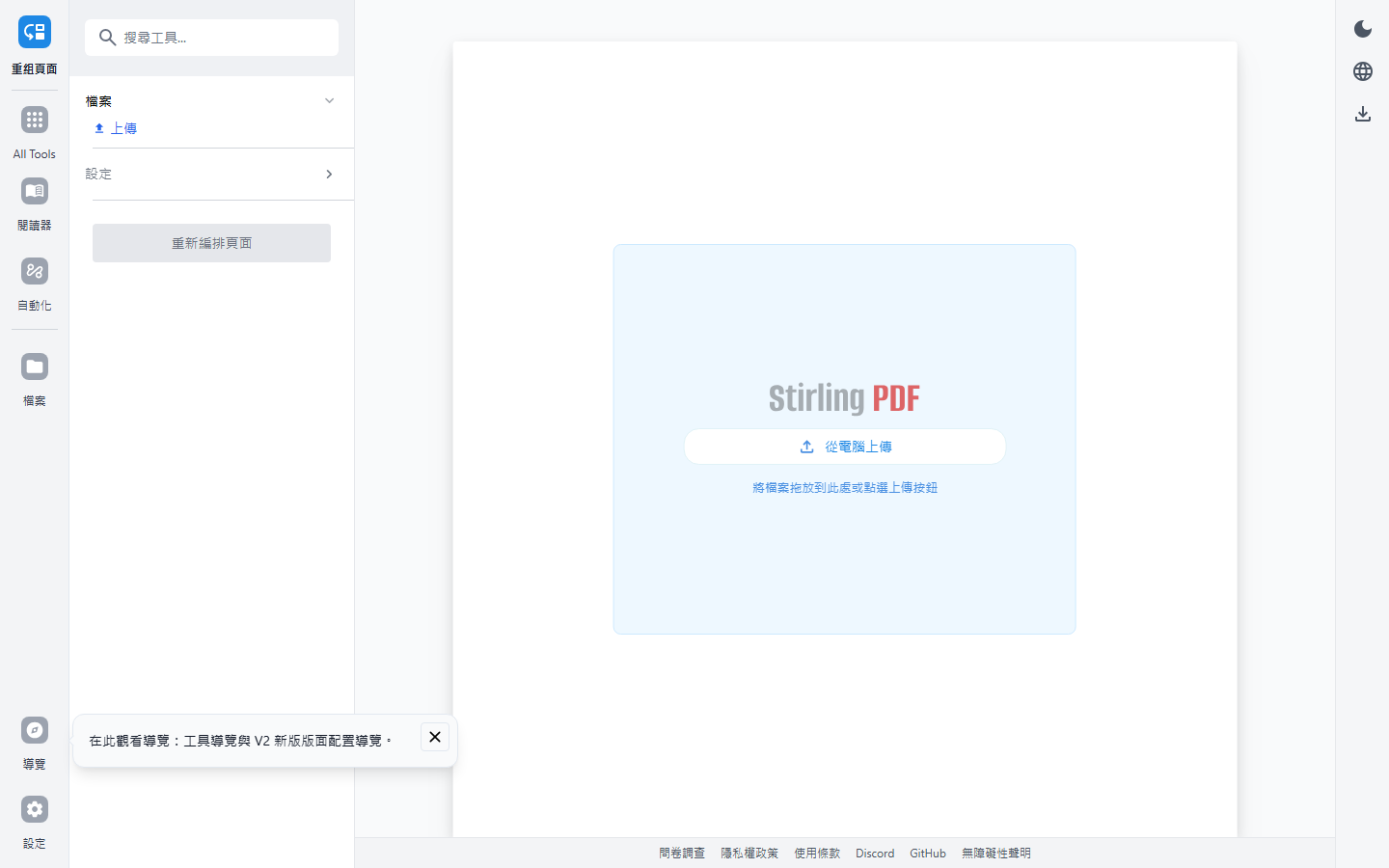
Drag pages visually to change their order, delete them or duplicate them.
Steps:
- Left tool list → PDF Organizer / Organize (「PDF 整合工具 / 整理」) (or URL:
/pdf-organizer) - Upload the PDF; thumbnails of all pages are shown
- Drag pages to change the order
- Click a page to select it, then press the Delete key to remove it
- When you are done, click Apply changes (「套用變更」) and download
3.4 Rotate Pages (Rotate)
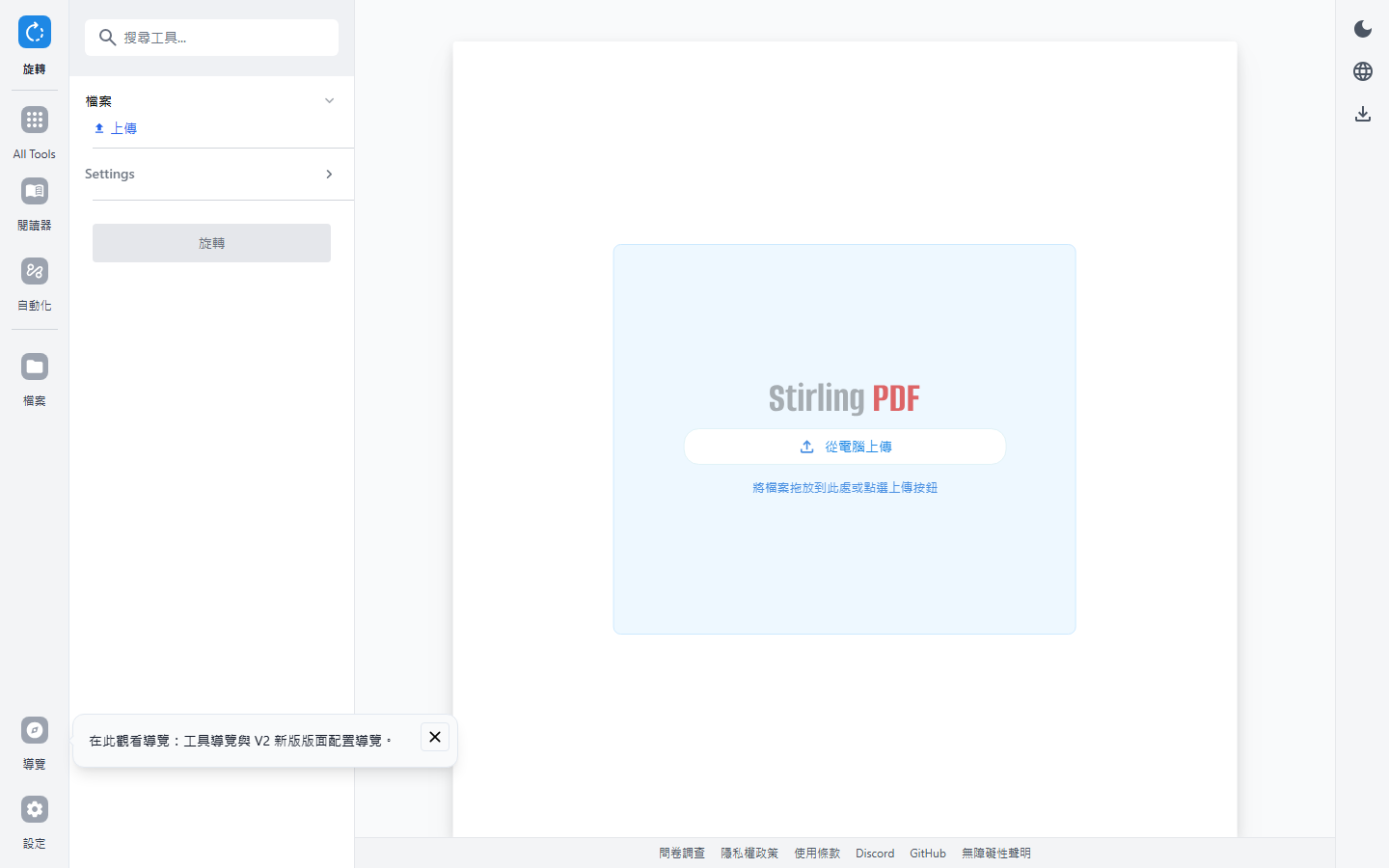
Fix pages that were scanned the wrong way round.
Steps:
- Left tool list → Rotate (「旋轉」) (or URL:
/rotate-pdf) - Upload the PDF
- Choose the rotation angle: 90° (clockwise), 180° (upside down), 270° (counterclockwise)
- You can specify which pages to rotate (leave blank = all pages)
- Click Rotate
3.5 Remove Pages
Keep specific page ranges and delete the rest.
Steps:
- Search for "remove" (「刪除」) → choose Remove Pages (「刪除頁面」)
- Upload the PDF
- Enter the pages to remove, for example
1, 3-5, 8 - Click Remove (「刪除」)
3.6 Extract Pages
Keep only the pages you specify and discard the rest (the opposite of removing). Useful for pulling specific sections out of a large report.
Steps:
- Search for "Extract" (「提取」) → choose Extract Pages (「提取頁面」)
- Upload the PDF
- Enter the pages to keep:
2, 4-6, 10 - Click Extract (「提取」)
4. Format Conversion
4.1 PDF → Word (.docx)
Convert a PDF into an editable Word document.
Steps:
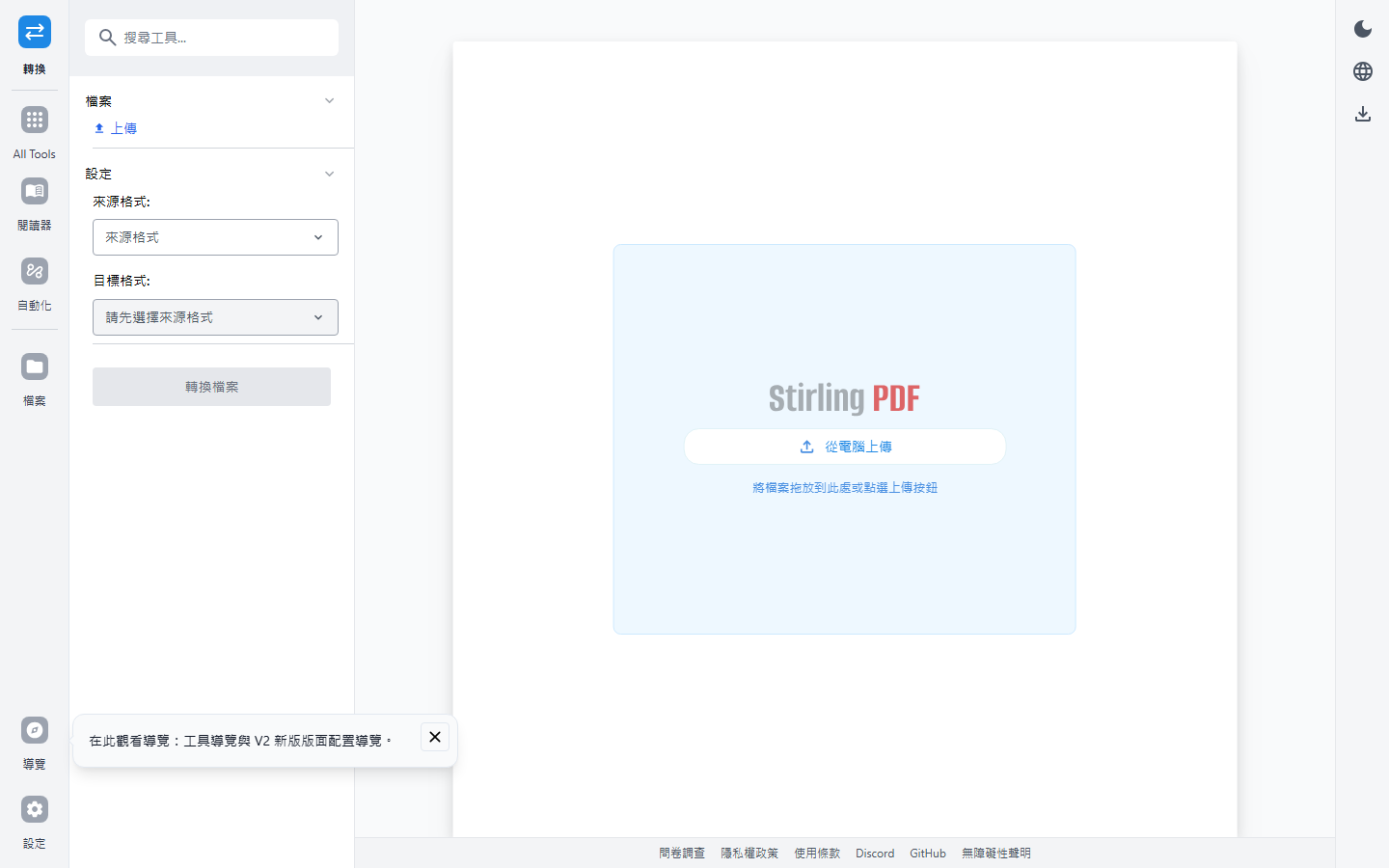
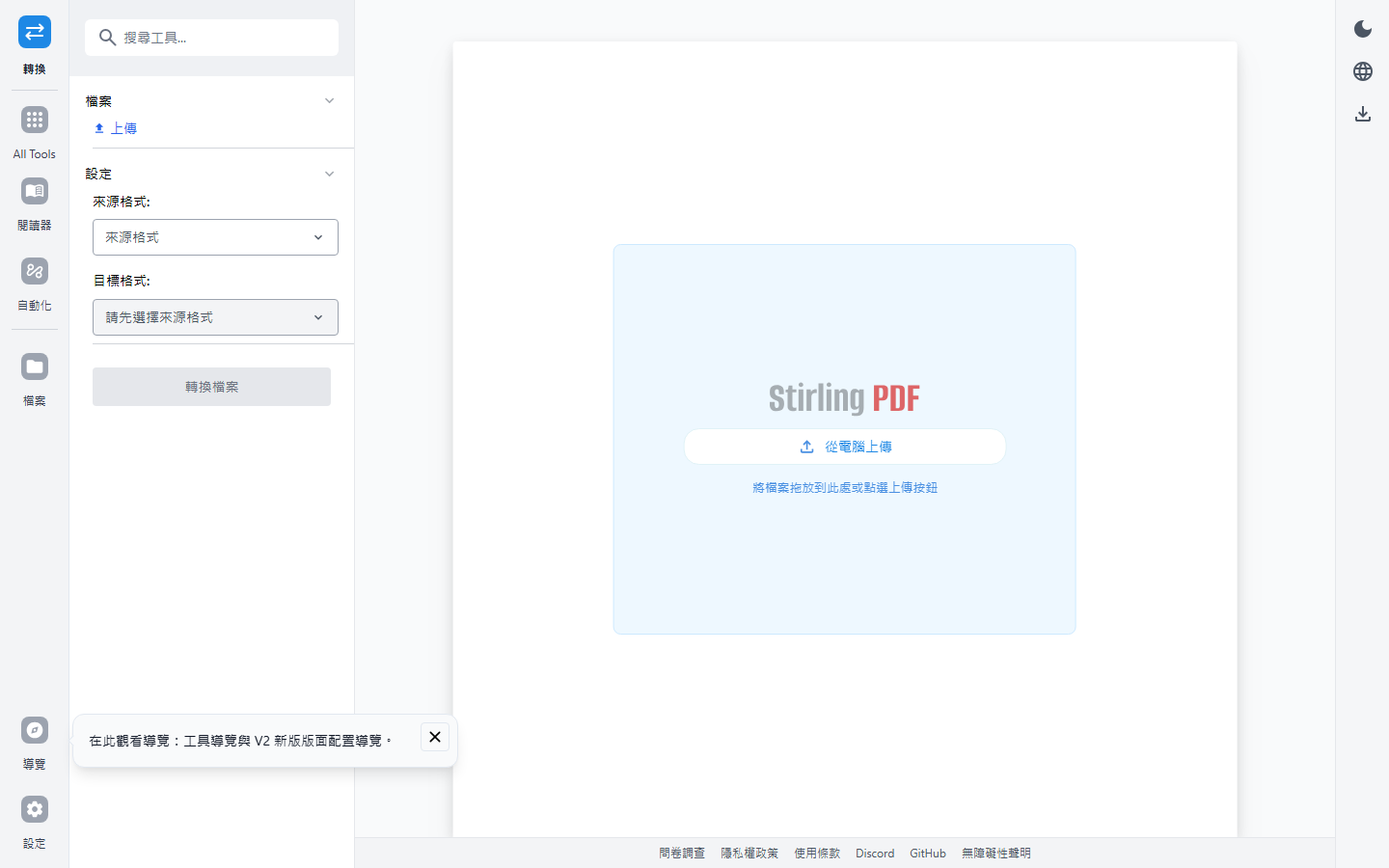
- Left tool list → Convert (「轉換」) → PDF to Word (「PDF 轉 Word」) (or URL:
/pdf-to-word) - Upload the PDF
- Choose the output format:
.docx(recommended) or.doc(for older versions) - Click Convert
- Download the Word file
Note: Conversion quality depends on how the original PDF is built. Text-based PDFs convert well; for scanned PDFs, run OCR first and then convert.
4.2 PDF → Excel
Convert tables in a PDF into Excel. Especially useful for financial reports and quotations.
Steps:
- Search for "Excel" → choose PDF to Excel (「PDF 轉 Excel」)
- Upload the PDF
- Click Convert
- Download the
.xlsx
4.3 PDF → Images (PNG / JPG)
Export each page of a PDF as an image file. Useful for presentation material or sharing on LINE.
Steps:
- Left tool list → PDF to Image (「PDF 轉圖片」) (or URL:
/pdf-to-img) - Upload the PDF
- Choose:
- Format: PNG (lossless, larger files) / JPG (lossy, smaller files)
- Resolution (DPI): 72 / 150 / 300 (higher is sharper)
- One image per page or all pages merged into one image
- Click Convert → download the ZIP
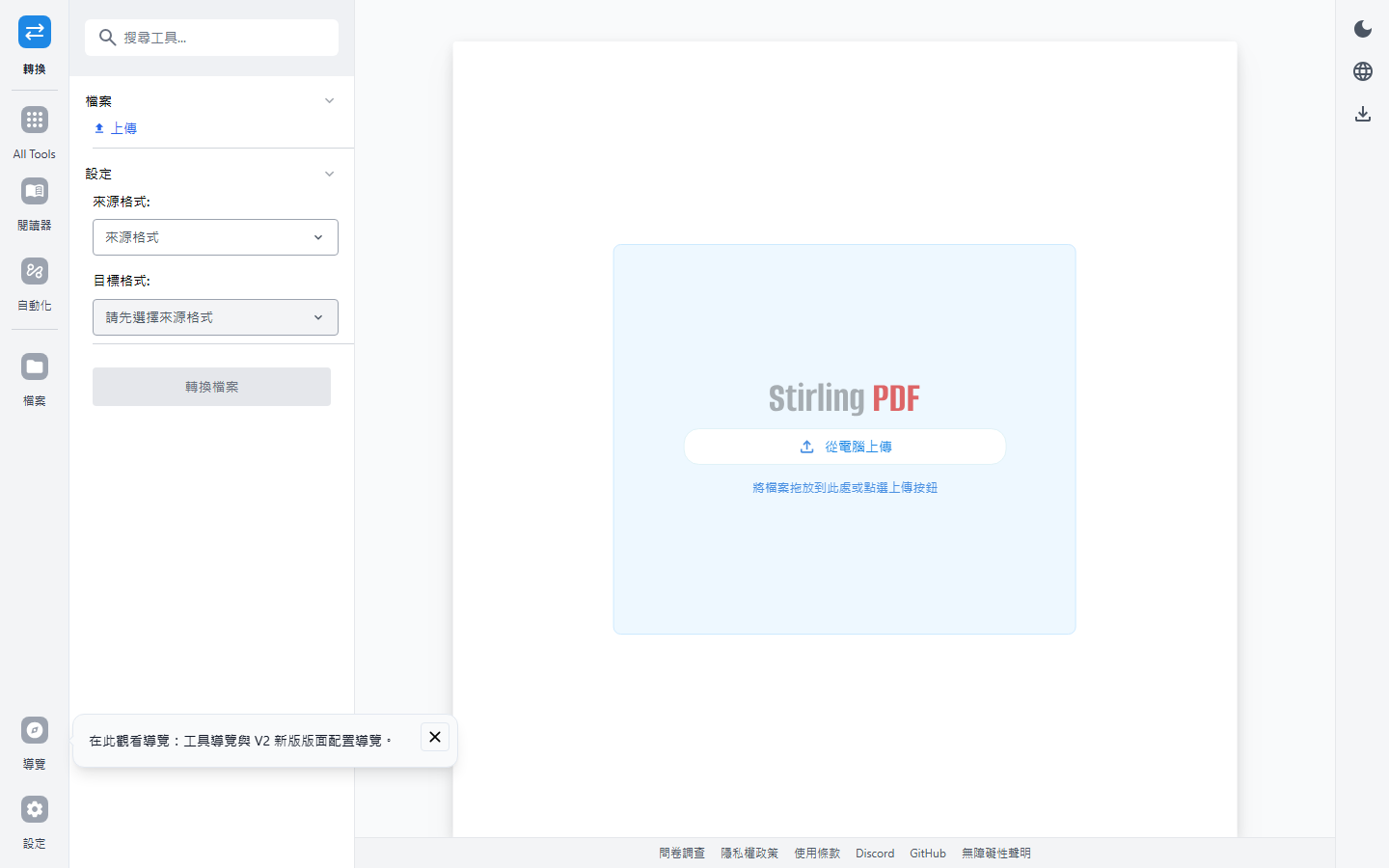
4.4 Images → PDF
Combine several images into one PDF (useful for turning photos or scans into a single file).
Steps:
- Left tool list → Image to PDF (「圖片轉 PDF」) (or URL:
/img-to-pdf) - Upload several images (JPG / PNG / HEIC and so on)
- Adjust the order
- Choose the page size:
A4(default),Letter,Original size(原始大小) - Click Convert
4.5 Office → PDF
Convert Word / Excel / PowerPoint to PDF.
Steps:
- Search for "Office" or "File to PDF" (「檔案轉 PDF」)
- Upload a
.docx/.xlsx/.pptx - Click Convert
Note: If the Office file contains special fonts or macros, the output may differ slightly. For important documents, use Save as PDF in the original Office application instead.
5. Security and Signatures
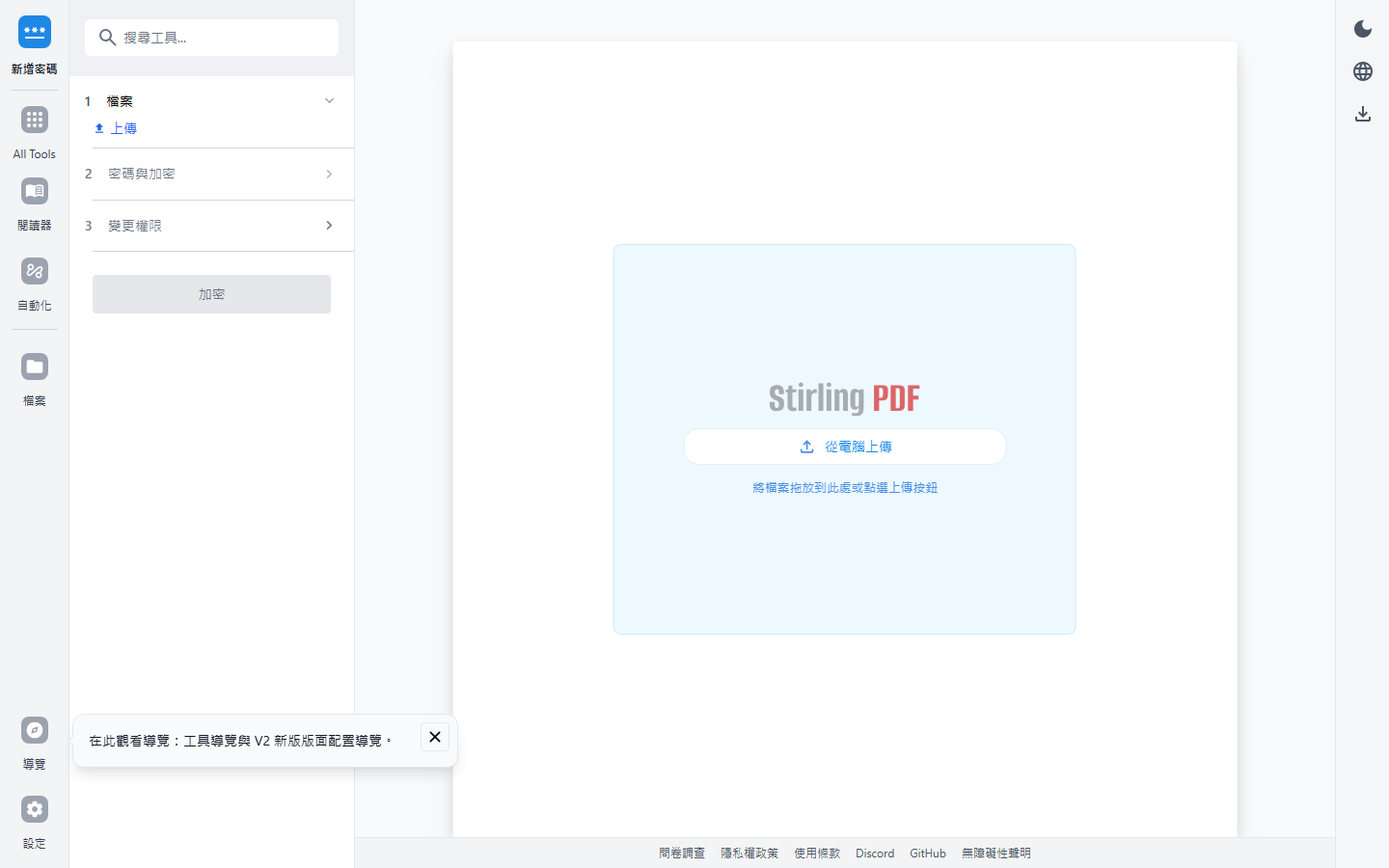
5.1 Encrypt / Set a Password
Protect a confidential PDF so others cannot open it.
Steps:
- Left tool list → Document Security (「文件安全」) → Add Password (「新增密碼」) (or URL:
/add-password) - Upload the PDF
- Set:
- Open password: required to open the file
- Permissions password: restricts printing / copying / editing
- Encryption strength:
128-bit AES(recommended) or256-bit AES(strongest)
- Click Encrypt (「加密」)
Important: If you forget the password, it cannot be recovered. Keep it in Vaultwarden.
5.2 Remove a Password
If you know the password of a PDF, you can remove its restrictions.
Steps:
- Search for "Remove Password" (「解除密碼」)
- Upload the password-protected PDF
- Enter the correct password
- Click Remove (「解除」)
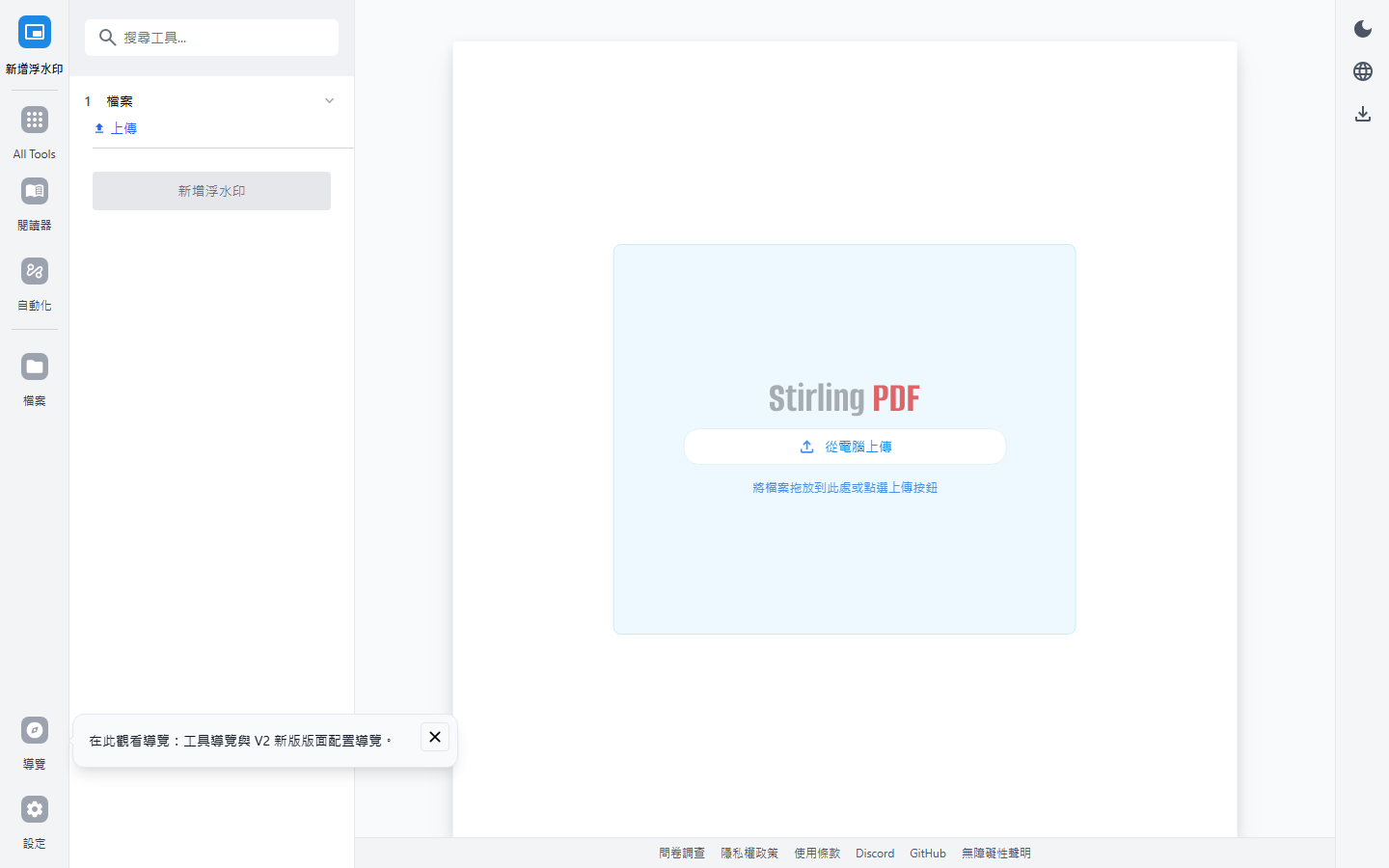
5.3 Add a Watermark
Add a watermark such as "Confidential", "Draft" or the company logo to every page of a PDF.
Steps:
- Left tool list → Add Watermark (「新增浮水印」) (or URL:
/add-watermark) - Upload the PDF
- Set:
- Type: text or image
- Text: for example "MICROIP Confidential"
- Font, size, color
- Opacity: 0-100% (30-50% recommended)
- Rotation: for example 45° (diagonal)
- Position: center, corners, or tiled across the page
- Click Add Watermark
5.4 Black Out Sensitive Content (Redact)
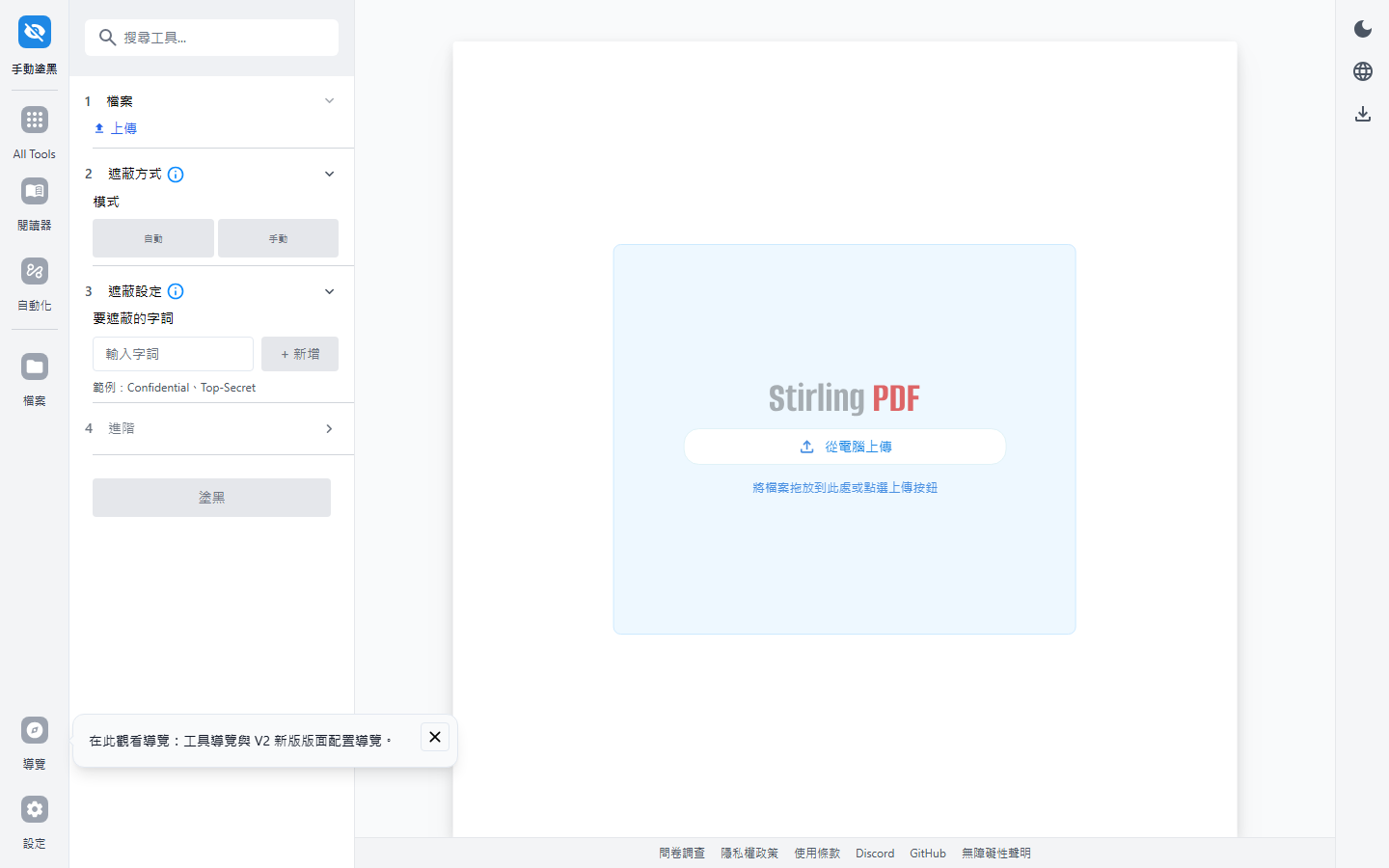
Permanently hide personal data, account numbers and sensitive figures. Redaction cannot be undone.
Steps:
- Left tool list → Redact (「塗黑」) (or URL:
/redact) - Upload the PDF
- Choose a mode:
- Manual redaction: drag with the mouse to select the areas to hide
- Automatic redaction: enter keywords (for example ID numbers or e-mail addresses); every occurrence is found and blacked out automatically
- Check the preview
- Click Apply redaction (「套用塗黑」) → download
Security note: Redaction really deletes the text layer (it is not just covered visually), so the content cannot be recovered by copying, searching or OCR. This is safer than covering text with a "black box" in a PDF editor.
5.5 Sign / Verify Signatures
Add a signature to a document, or verify a document signed elsewhere.
Steps (adding a signature):
- Left tool list → Sign (「簽章」) (or URL:
/sign) - Upload the PDF
- Choose a signature type:
- Draw: sign in the box with your mouse or touchscreen
- Upload an image: JPG / PNG
- Type: choose a font and type your name
- Drag the signature to the right place on the PDF
- Click Apply (「套用」) → download
How this differs from an electronic signature: Stirling PDF provides a visual signature (an image only), not a legally binding digital certificate. For formal contracts, use DocuSign or Adobe Sign.
6. File Optimization
6.1 Compress a PDF
Reduce the file size (useful for e-mail attachments and uploading to LINE).
Steps:
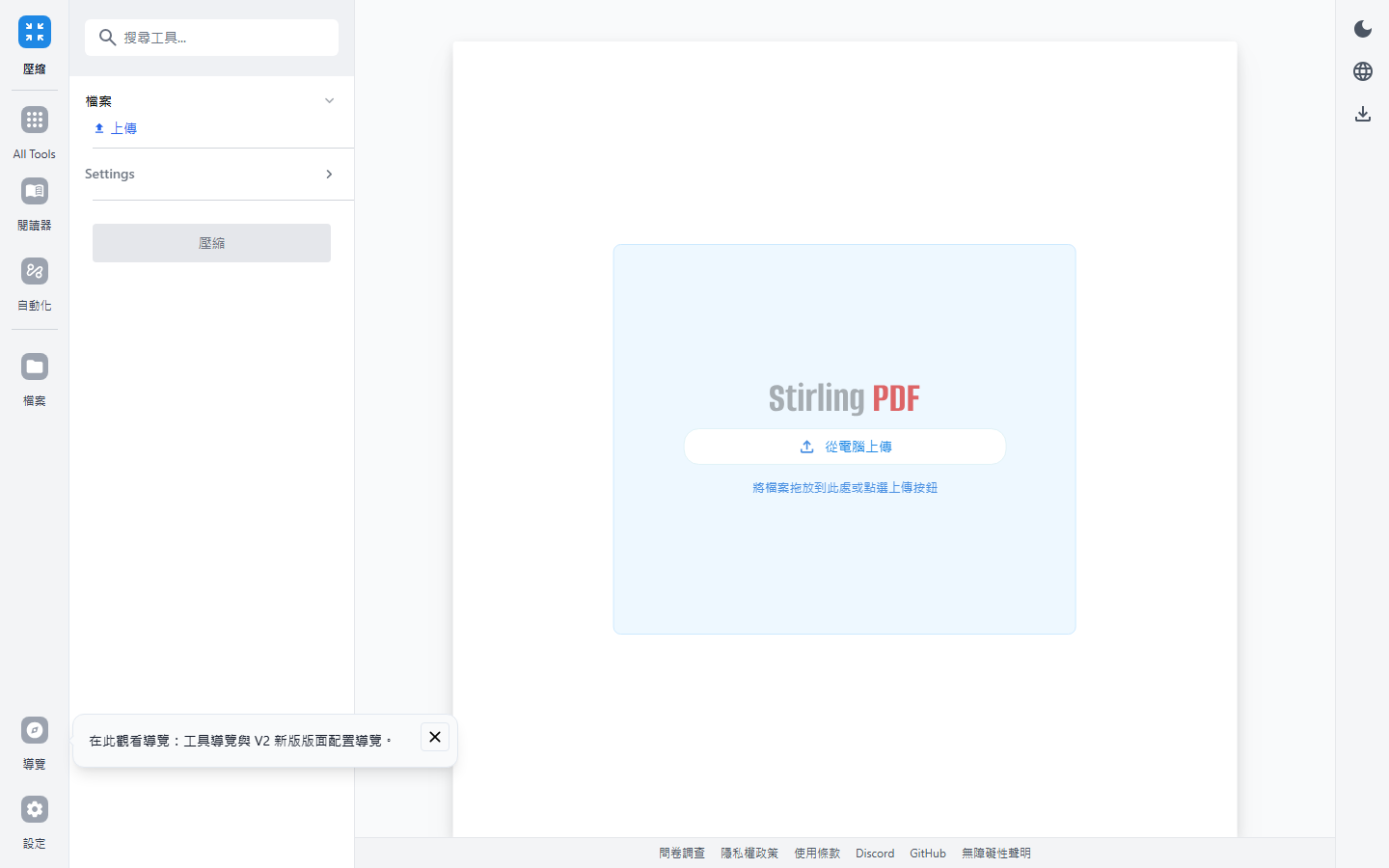
- Left tool list → Compress PDF (「壓縮 PDF」) (or URL:
/compress-pdf) - Upload the PDF
- Choose a compression level:
| Level | Description | Recommended for |
|---|---|---|
| Low | Light compression, best quality | Formal reports, high-quality printing |
| Medium | Balances quality and size | E-mail attachments (recommended) |
| High | Strong compression, lower image quality | Internal circulation, large files that must be smaller |
- Click Compress (「壓縮」)
- After downloading, compare the size of the original and the compressed file
6.2 Repair a Damaged PDF
If a file will not open or shows an error message, try repairing it.
Steps:
- Search for "Repair" (「修復」) → choose Repair PDF (「修復 PDF」)
- Upload the damaged PDF
- Click Repair → download
6.3 Flatten
"Burn" form fields and annotations into the page content, so the file looks the same in every PDF reader.
When to use it: Before you send a completed form, so the recipient cannot change it by accident.
7. OCR (Text Recognition)
Turn a scanned PDF (images only, no copyable text) into a searchable, copyable PDF.
Steps:
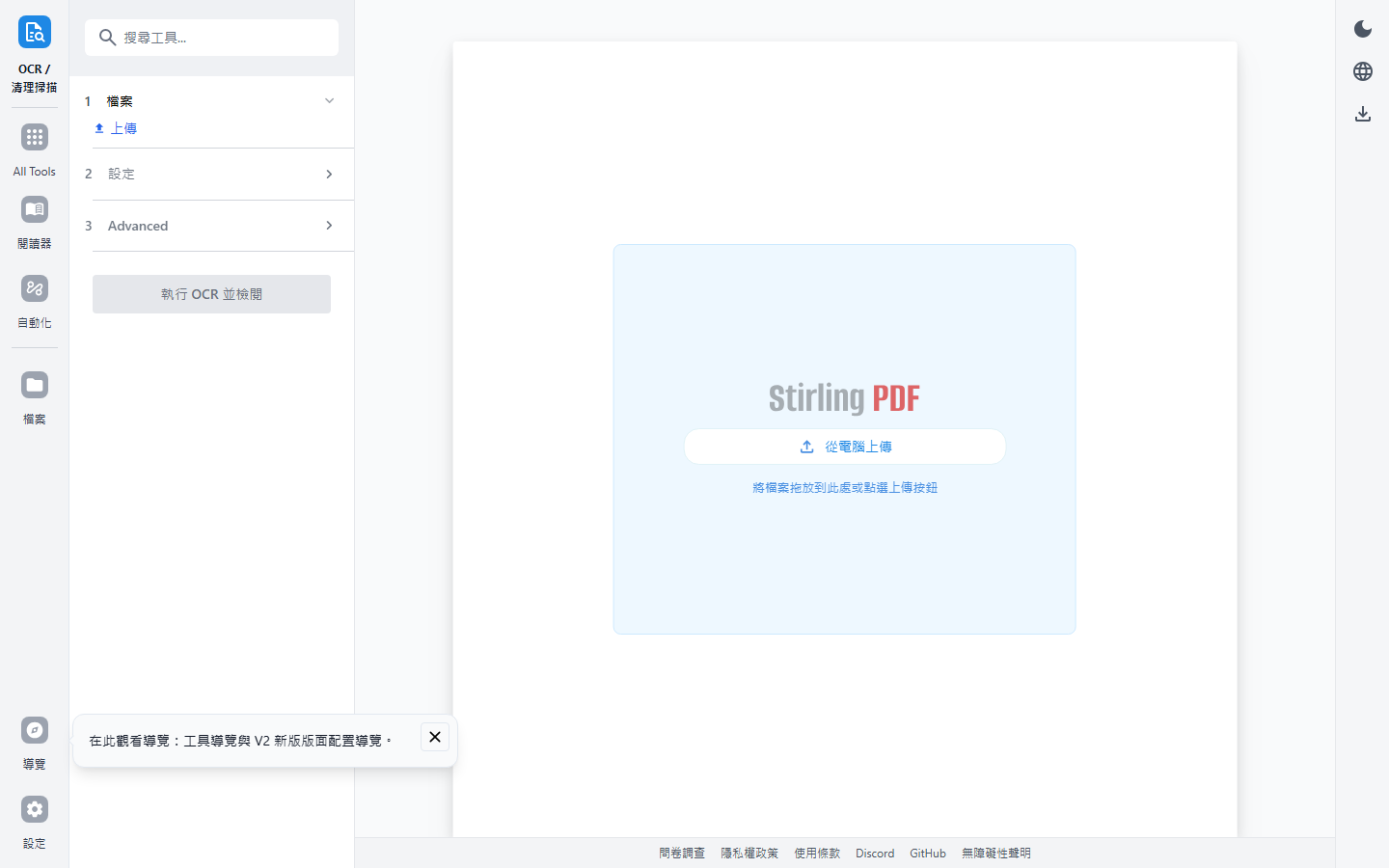
- Left tool list → OCR / Cleanup scans (「OCR / 清理掃描」) (or URL:
/ocr-pdf) - Upload the scanned PDF
- Choose the OCR language:
| Language code | Language |
|---|---|
chi_tra |
Traditional Chinese |
chi_sim |
Simplified Chinese |
eng |
English |
jpn |
Japanese |
chi_tra+eng |
Traditional Chinese + English (recommended) |
- Select options (as needed):
- Text only: outputs a plain text file
.txt - Create searchable PDF (recommended): keeps the original image and adds a text layer
- Remove noise: improves scan quality
- Text only: outputs a plain text file
- Click Apply OCR (「套用 OCR」)
- Wait for processing (large files can take several minutes)
Tips:
- OCR takes about 2-5 seconds per page; 100 pages take about 5 minutes.
- Chinese OCR accuracy is about 95%+ (for clear scans); handwriting is recognized poorly.
- If the scan quality is poor, running "Remove noise" first improves accuracy.
Batch OCR
On the Automate page you can build a pipeline to OCR several documents at once:
- Left toolbar → Automate
- Add a pipeline
- Step 1: upload several files
- Step 2: apply OCR (choose the language)
- Step 3: download the ZIP
8. Common Work Scenarios
8.1 Scanned contract → OCR → extract text
Scenario: A paper contract has been scanned, and your manager wants every amount in it found.
- Scan: Scan it to PDF on the multifunction printer and save it to your computer.
- OCR: Stirling PDF → OCR / Cleanup scans → upload → language
chi_tra+eng→ select Create searchable PDF - Download: You can now use
Ctrl+Fin this PDF to search for keywords such as "NT$" or "美金" (US dollars). - Copy text: Select the text → copy and paste it into Excel to organize it.
8.2 Monthly reports: merge + watermark + compress
Scenario: Five department monthly reports need to be combined into one attachment for your boss.
- Merge: Merge → drag in the 5 files → adjust the order → Merge.
- Watermark: Add Watermark → text "Confidential - MICROIP" → rotation 45°, opacity 35%.
- Compress: Compress PDF → level Medium → export.
- E-mail: The attachment is a clean, watermarked, reasonably sized merged file.
8.3 PowerPoint → PDF → redact → share externally
Scenario: You want to share an internal presentation with a customer, but a few slides contain company financial figures that must be hidden.
- Convert to PDF: Office to PDF → upload the
.pptx→ download the PDF. - Redact: Redact → upload the PDF → manually select the sensitive areas → Apply redaction.
- Encrypt (optional): Add Password → set an open password → tell the customer.
- Send by e-mail: The customer's copy cannot be used to recover the redacted content.
9. FAQ
Q: How large a file can it handle?
A: About 2 GB per file, which covers normal office PDFs. If a file is larger, use Split first to break it up.
Q: Why is processing sometimes slow?
A: OCR, compression and format conversion are CPU-heavy. Large files and files with many pages take longer. We recommend:
- OCR of 100+ pages takes about 5-10 minutes; do not close the browser tab
- Try not to run OCR at the same time as many other people (everyone shares the same server)
Q: Can other colleagues see my files?
A: No. Each upload is an independent browser session, and nothing is kept after processing. But please download promptly and do not leave the result sitting in a tab, in case the tab is closed by accident and the file is lost.
Q: Which OCR languages are supported?
A: Installed: Traditional Chinese, Simplified Chinese, English, Japanese, Korean. If you need another language (such as German, French or Spanish), contact the IT department to install the Tesseract language pack.
Q: Can I use it on my phone?
A: Yes, the site is responsive (RWD), but a computer is more convenient (for dragging files, selecting areas to redact and so on).
Q: Is there an API for connecting other systems?
A: Yes. Stirling PDF provides a full REST API (documentation: ⚙️ at the top right → API Documentation (API 文件)), and every web feature has a matching endpoint. You can use it to:
- Automatically merge monthly reports into a single PDF from the ERP
- Automatically OCR scanned documents from the OA system
- Batch-compress archived files
Q: What if I forget the encryption password?
A: It cannot be recovered. For important documents, save the password in Vaultwarden beforehand (Password management guide).
Q: Why does the layout break when I convert a PDF to Word?
A: A PDF is not an "editable structure" to begin with, so converting to Word can only reconstruct it as closely as possible. Text-based PDFs convert with high fidelity (90%+), scanned PDFs need OCR before conversion, and complex layouts (multiple columns, tables, floating images) may break and need manual adjustment.
Q: Are signatures legally binding?
A: A visual signature has no digital certificate; it is only a visual mark. To sign formal contracts, use a third-party e-signature service (DocuSign, Adobe Sign) or a company PKI certificate.
10. Contact
If you have any questions or feature suggestions, contact the IT department:
- Email: [email protected]
- Extension: please ask MIS
- Platform URL: https://pdf.micro-ip.com
Related guides: