Welcome to the MICROIP IT Knowledge Base (https://it.micro-ip.com)! This is the technical information hub for everyone in the company, with IT how-to guides and technical documentation. This article gives you a quick tour of the site's features.
The home page
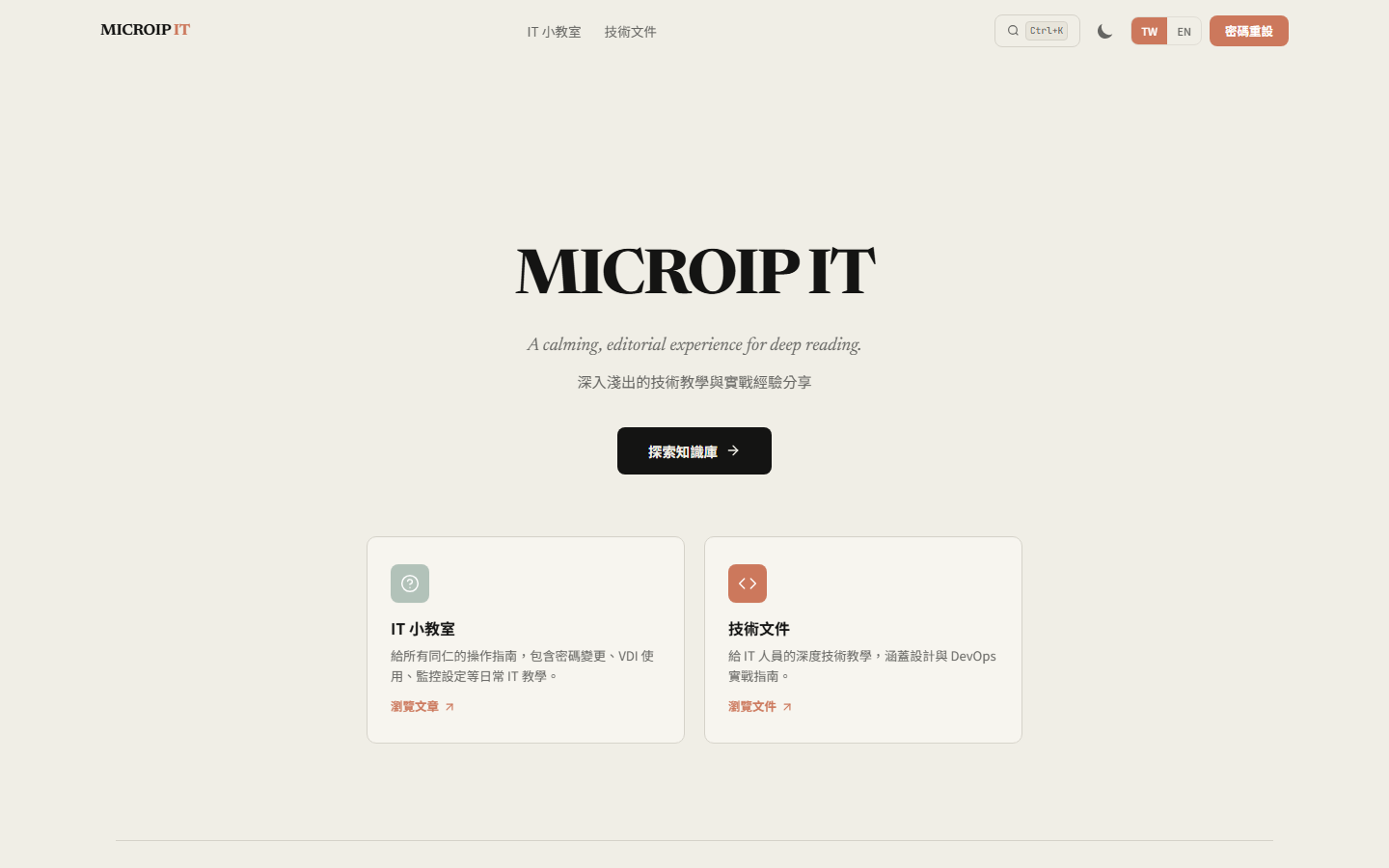
On the home page you will see:
- Hero area: the large "MICROIP IT" title with a button to explore the knowledge base, and two category cards below it that take you to the different sections.
- IT Classroom (「IT 小教室」) section: for all employees, with IT how-to guides on all kinds of topics (VPN setup, account issues, using VDI, and more).
- Tech Docs (「技術文件」) section: mainly for IT engineers, with in-depth technical content such as firewall management, system architecture and operations guides.
Each section automatically shows cards for its 3 latest articles. Each card shows the category tag, title, summary, author and date.
IT Classroom
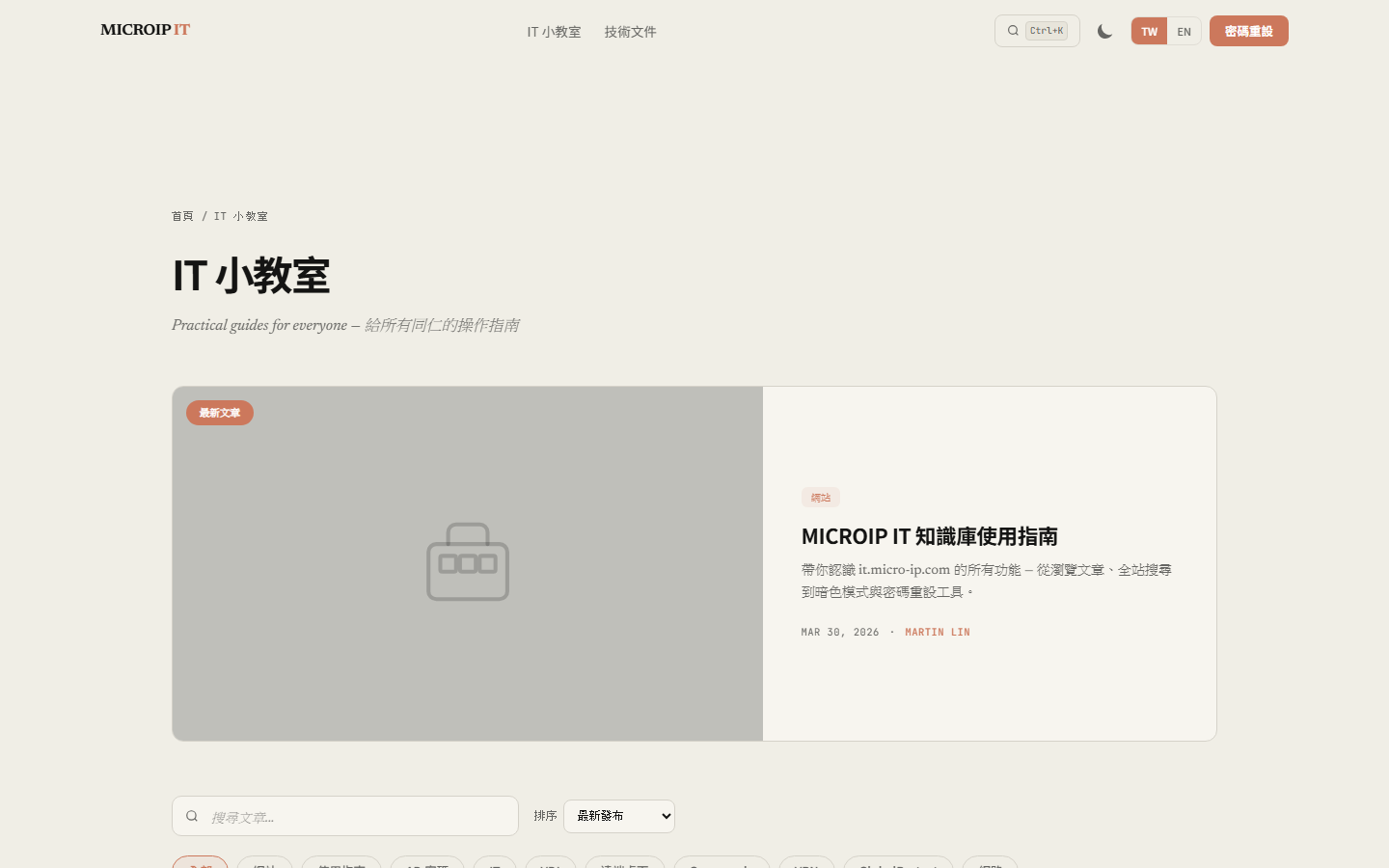
Click IT Classroom (「IT 小教室」) in the navigation bar to open the article list:
- Featured card: the latest article is pinned at the top as a large card, with an SVG illustration on the left and the title and summary on the right.
- Instant search: type a keyword in the search box and the list filters instantly to articles whose title or description matches.
- Tag filter: click a tag pill (such as "VPN", "AD password" (「AD 密碼」) or "VDI") to show only articles in that category. The active tag is highlighted with a light background and a border.
- Sorting: use the drop-down menu to choose Newest (「最新發布」) or Title A→Z (「標題 A→Z」) to change the order.
Tech Docs
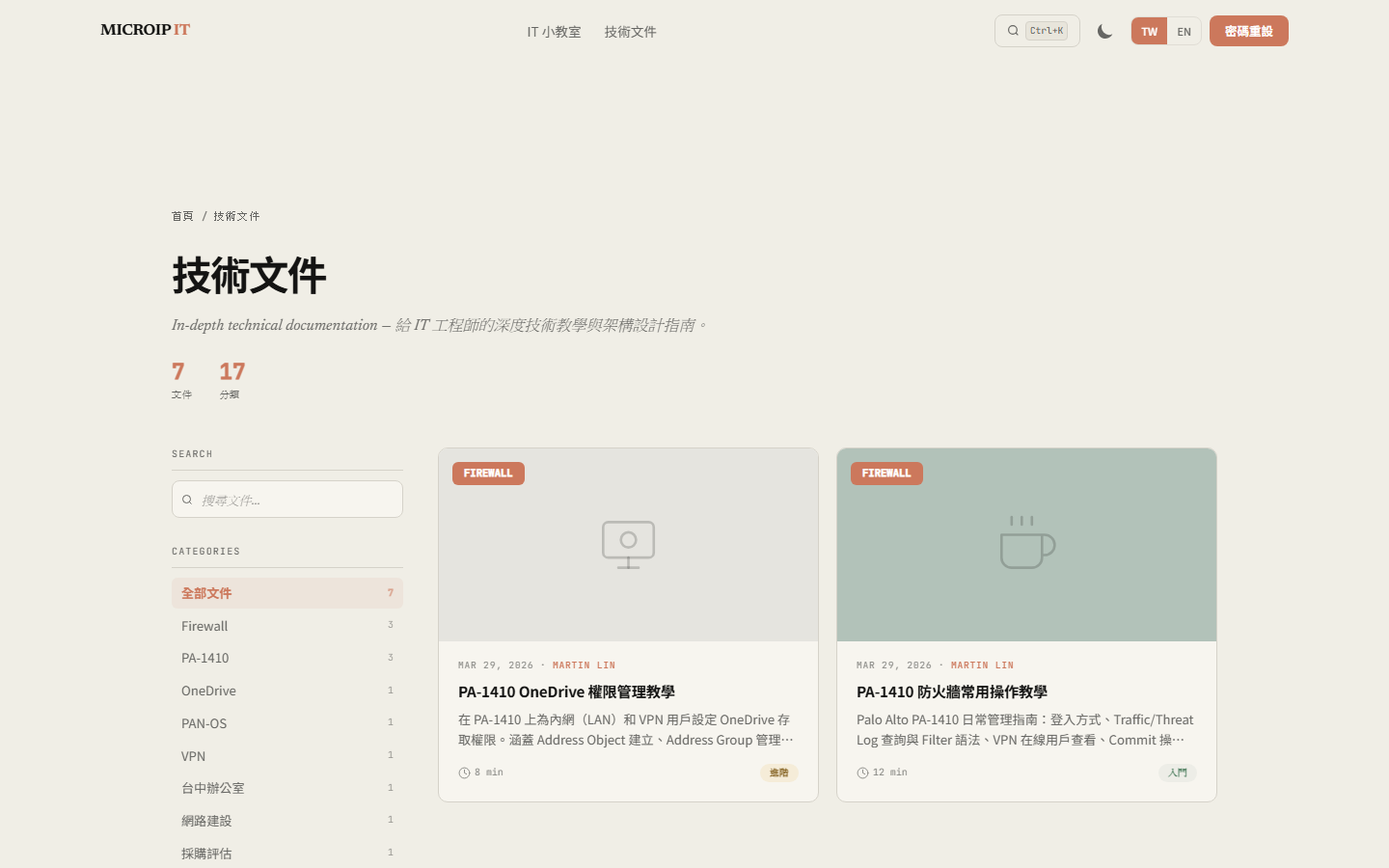
The Tech Docs section is designed for IT engineers and uses a two-column layout:
- Category sidebar on the left (240px): quickly filter articles by technical category (such as Firewall, PA-1410, VPN, OneDrive), with the number of articles shown next to each category.
- Search: like the IT Classroom, it supports instant keyword filtering.
- Statistics: the top of the page shows the total number of documents and categories, with a count-up animation.
- Difficulty badge: the bottom-right corner of each card shows a difficulty label (Beginner / Intermediate / Advanced; 「入門 / 進階 / 高階」), so you can pick articles that match your level.
Reading an article
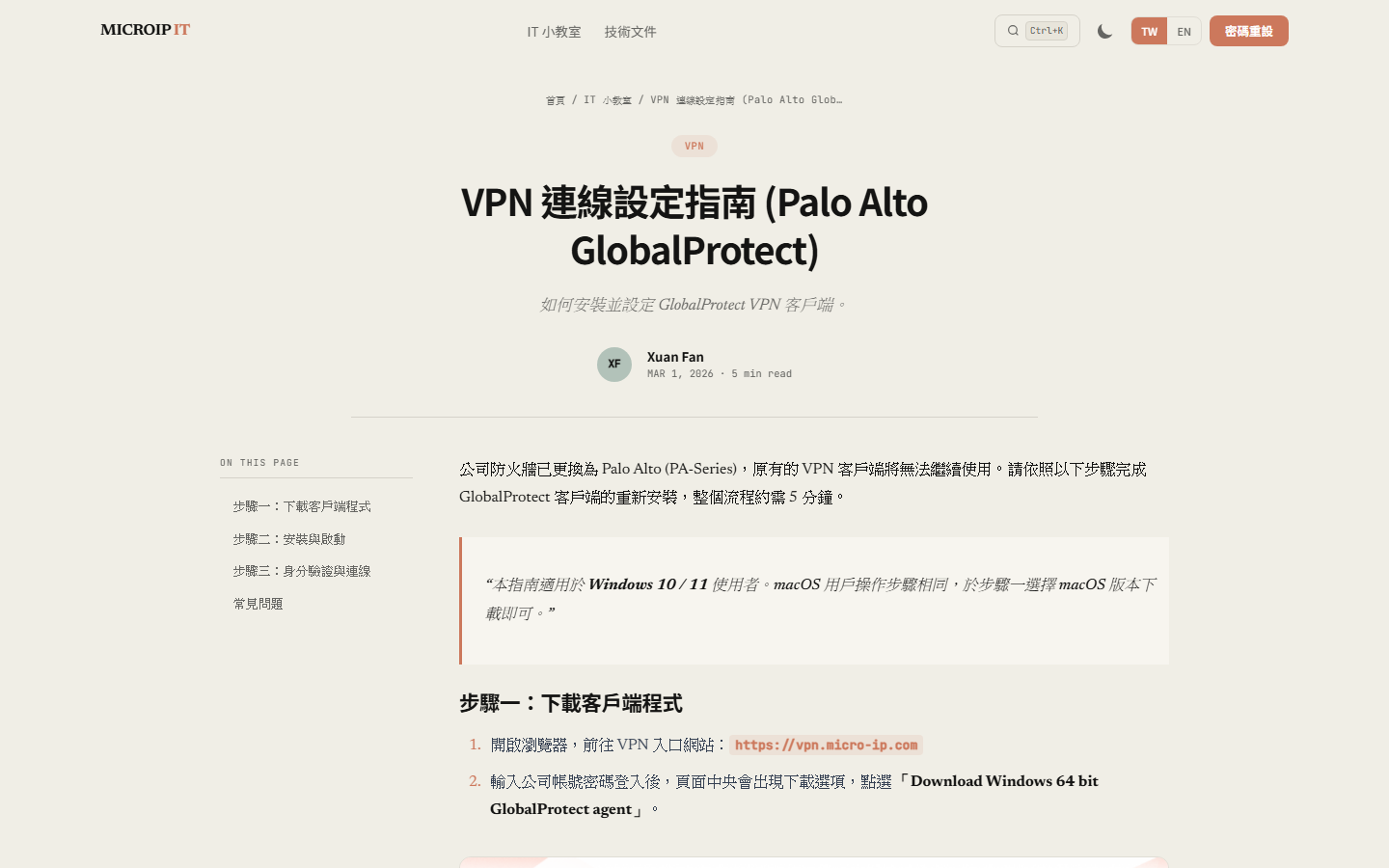
When you open an article, you will see:
- Reading progress bar: a 2px progress bar at the top of the page updates as you scroll, so you know how far you have read.
- Article header: breadcrumb navigation, category tag, title, summary in a serif font, author avatar and publication date.
- Table of contents (TOC) on the left: if the article has several sections, a clickable table of contents appears automatically on the left and highlights the current section as you scroll.
- Code blocks: styled like a terminal window, with the language name at the top and a one-click copy button in the top-right corner.
- Related articles: at the end of the article, other articles in the same category are recommended for further reading.
Useful features
Site-wide search
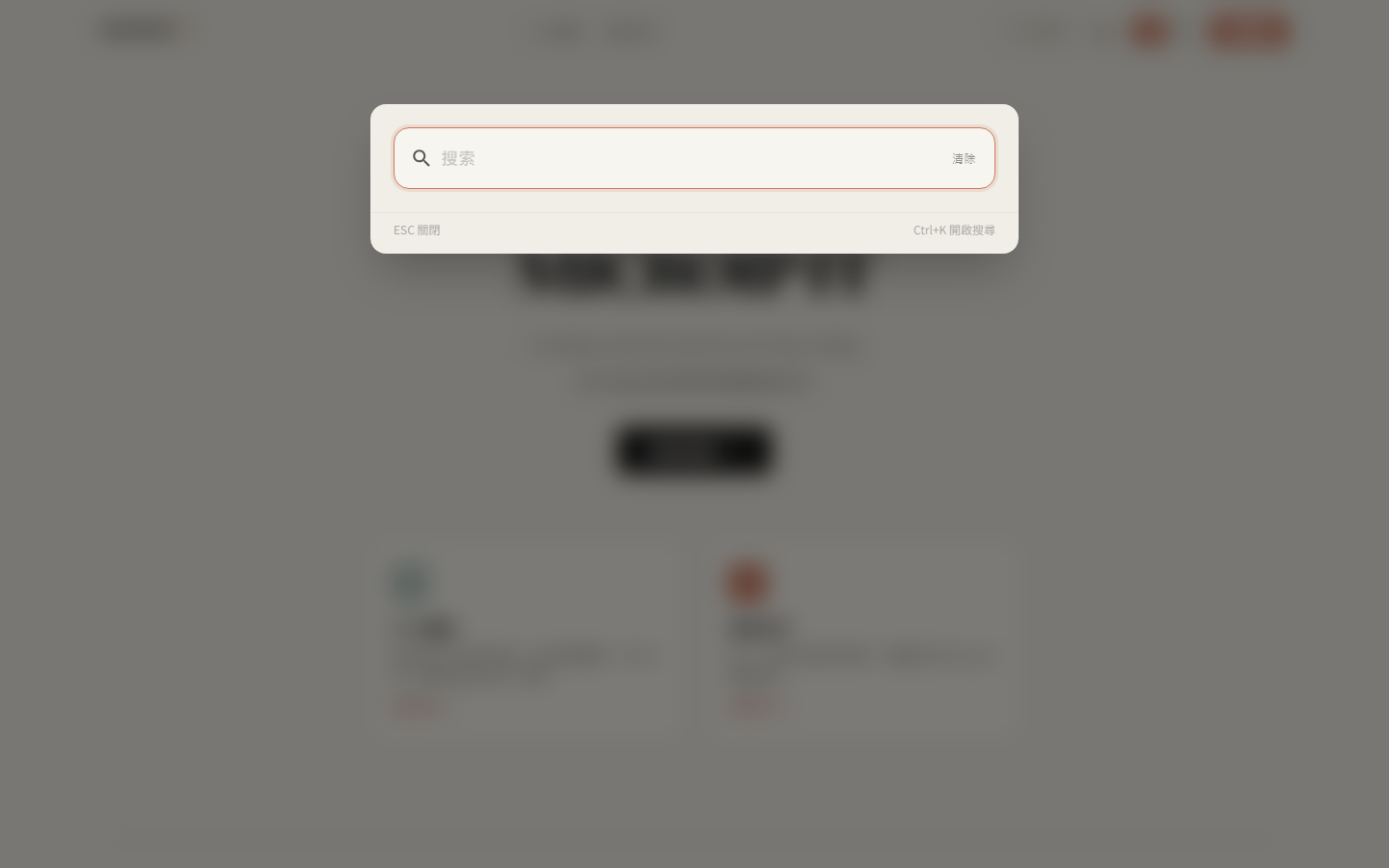
Press Ctrl + K (⌘ + K on a Mac) to open the site-wide search dialog. It searches the titles and body text of all articles and is the fastest way to find what you need. Press ESC to close it.
Dark mode
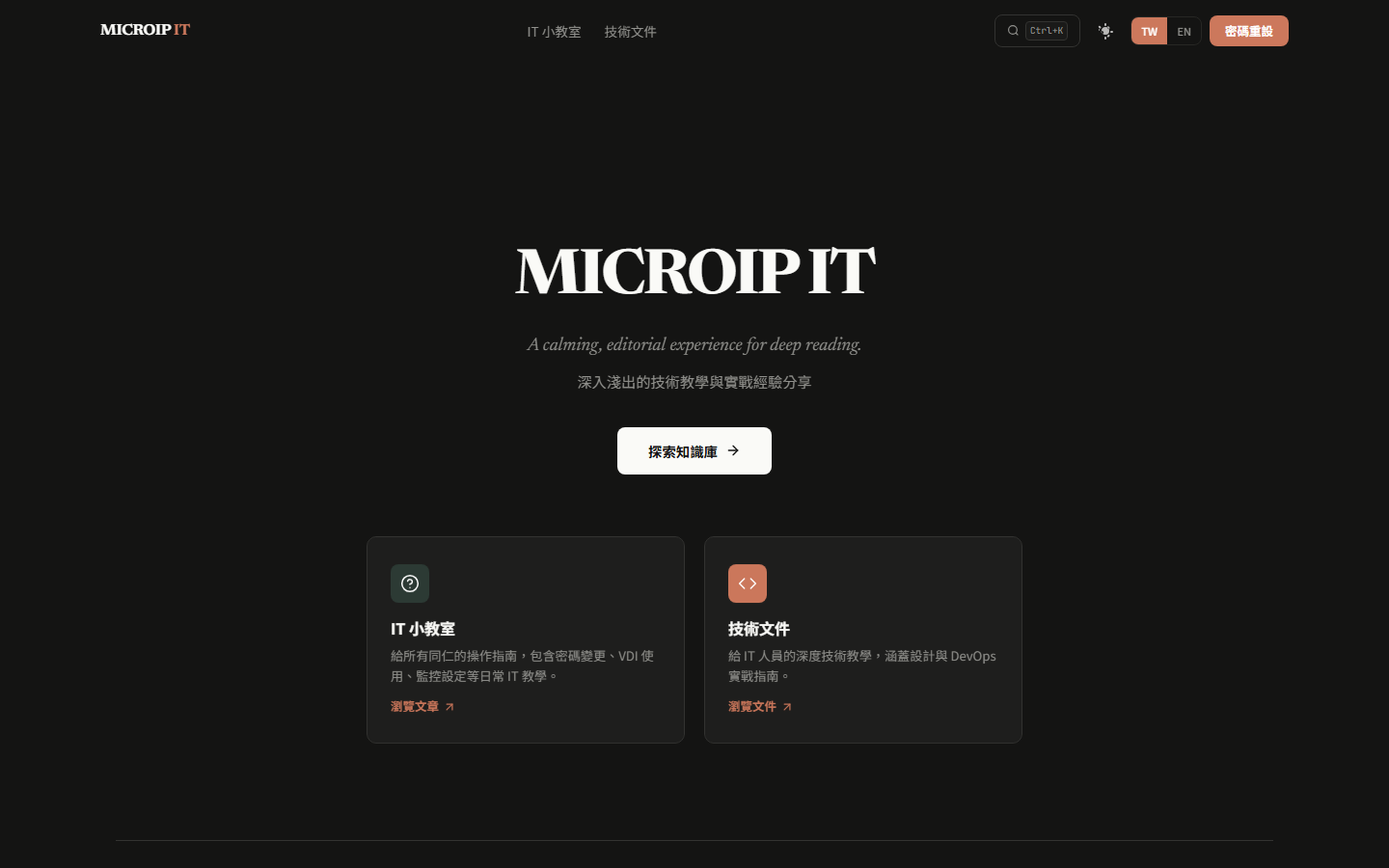
Click the theme toggle icon in the top-right corner of the navigation bar to switch between light and dark mode. The site remembers your preference and applies it automatically on your next visit. Dark mode uses a dark, warm color scheme that is more comfortable for long reading sessions.
Language switch
The TW / EN button in the top-right corner of the header switches between the Traditional Chinese and English interface. The page frame (navigation bar, buttons, footer) changes language; article content is currently mostly in Chinese.
Summary
The MICROIP IT Knowledge Base is updated regularly. If you have any questions, cannot find the information you need, or want to suggest a topic for a new article, feel free to contact the IT department directly.