To meet the company's information security policy and the ISO 27001 training requirements, all colleagues must complete the online course and quiz "2026 Security Awareness Training – Phishing Prevention" (「2026資安意識訓練 – 釣魚防範」). The whole process takes about 5 minutes. Here are the full steps with screenshots.
Before you start
| Item | Details |
|---|---|
| URL | https://moodle.micro-ip.com |
| User name | Your company domain account (the same one you use for your computer and e-mail, for example martin.lin) |
| Password | Your domain password (the same as for your computer and e-mail) |
| Recommended | Use a browser on your computer; a phone also works |
The first time you sign in, the system creates your account and enrolls you in the course automatically. You do not need to register or enroll yourself.
Step 1: Sign in
Open the Moodle training platform, enter your domain account and password on the right, and click Log in (「登入」).
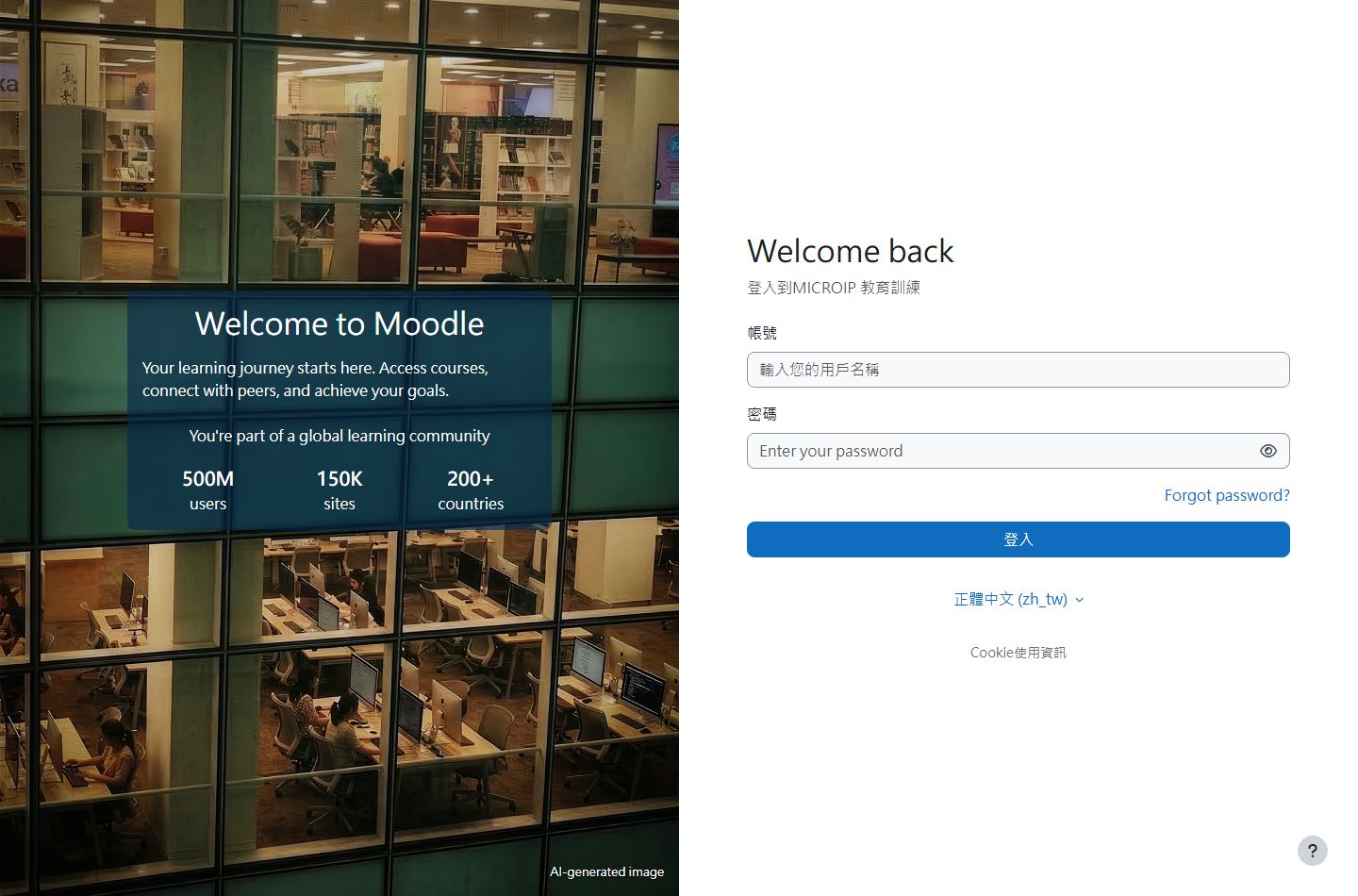
For the user name, enter the part before the @ (for example, if your e-mail is
[email protected], your user name ismartin.lin).
Step 2: Open the course
After you sign in, you go to the course "2026 Security Awareness Training – Phishing Prevention". The course has two items:
- Understanding Social Engineering and Phishing Emails (「認識社交工程與釣魚郵件」, an information page)
- Security Awareness Quiz (「資安意識小測驗」)
When you complete an item, a green Done (「完成」) mark appears on its right.
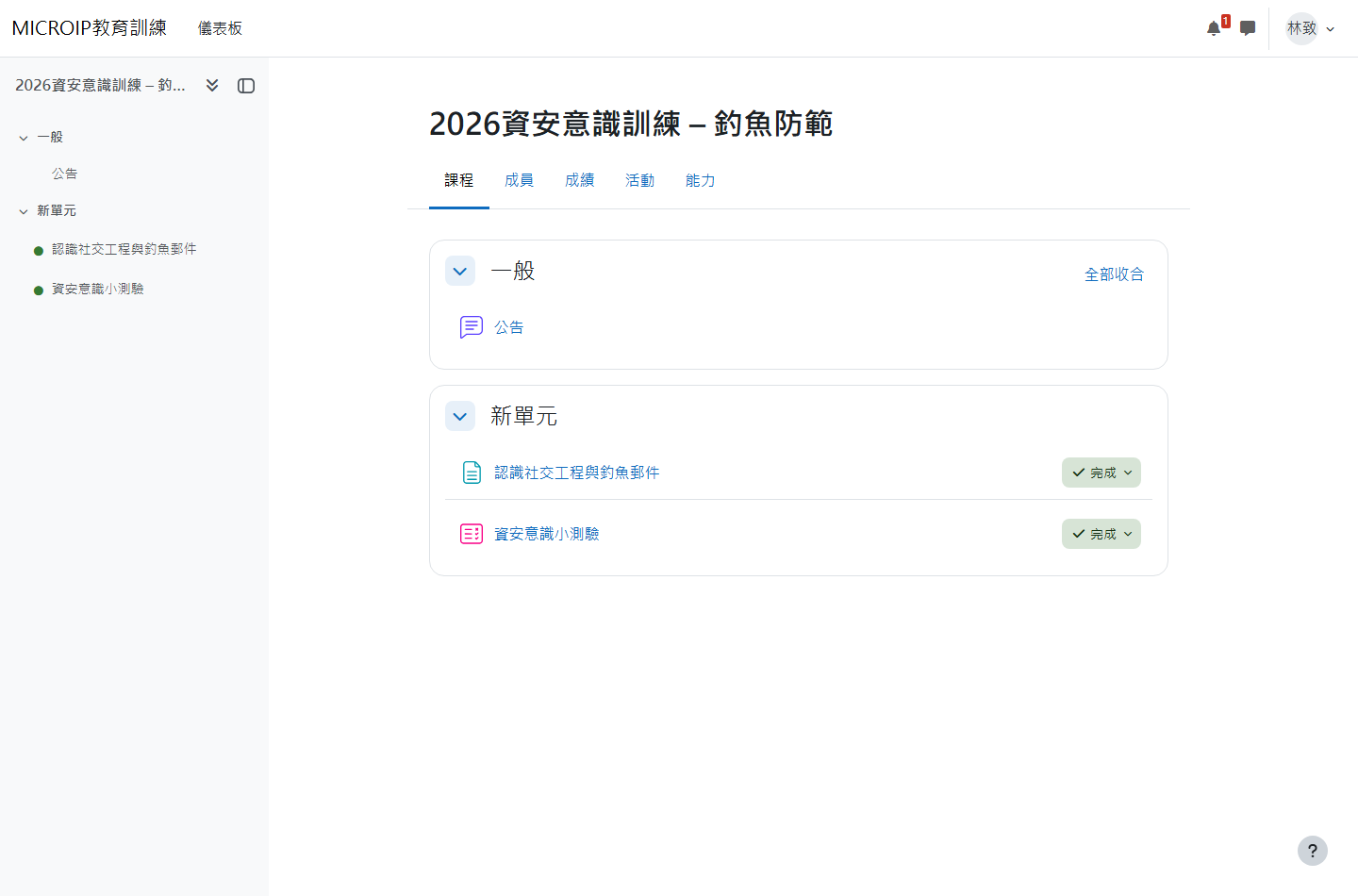
If you do not see the course right after signing in, click Dashboard (「儀表板」) at the top and find it under My courses (「我的課程」).
Step 3: Read the information page
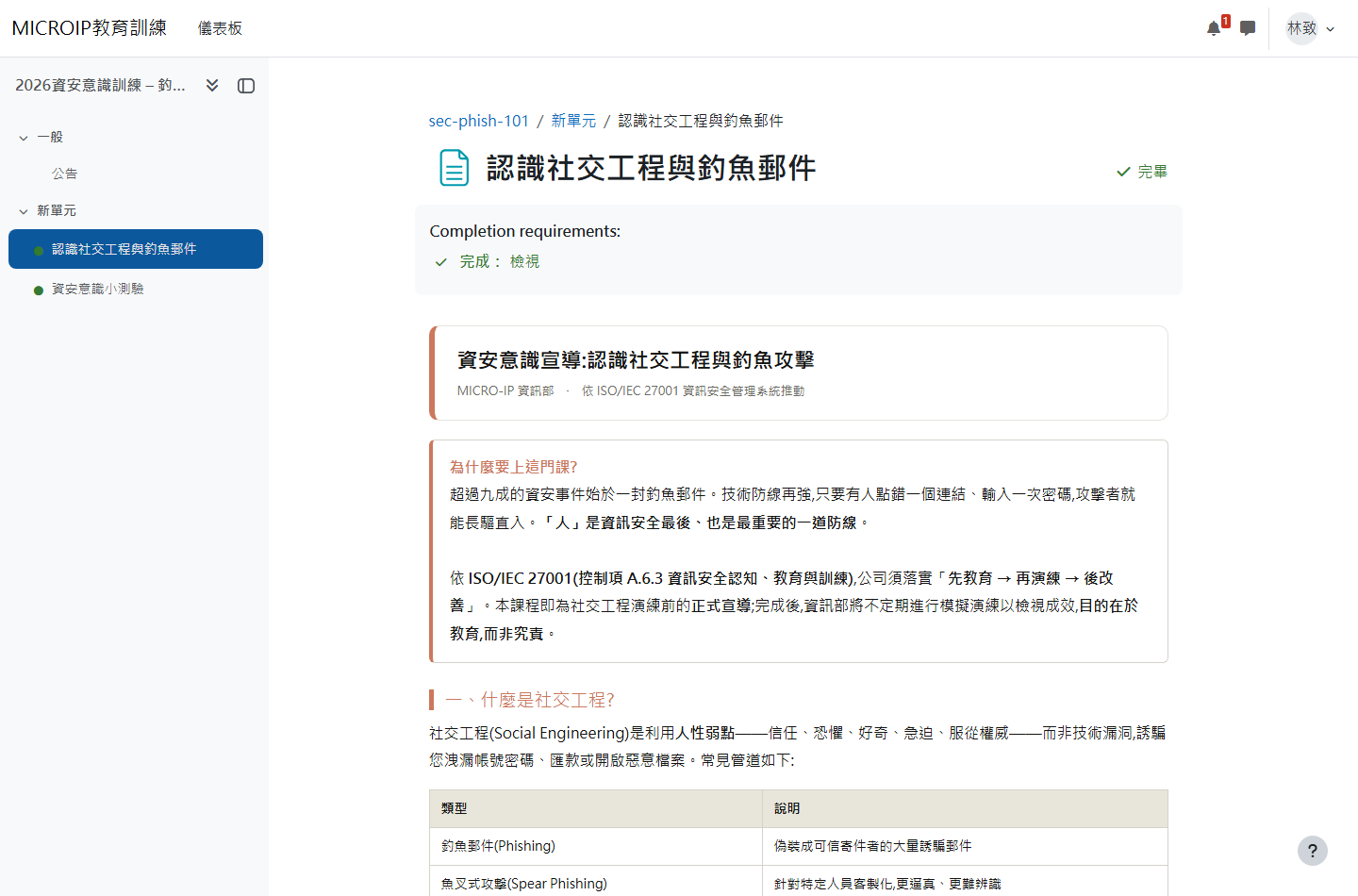
First click "Understanding Social Engineering and Phishing Emails" and read the content. It covers the common signs of phishing emails, the five major warning signs, and how to report them. Once you have read it, the system marks it as done automatically.
Step 4: Start the quiz
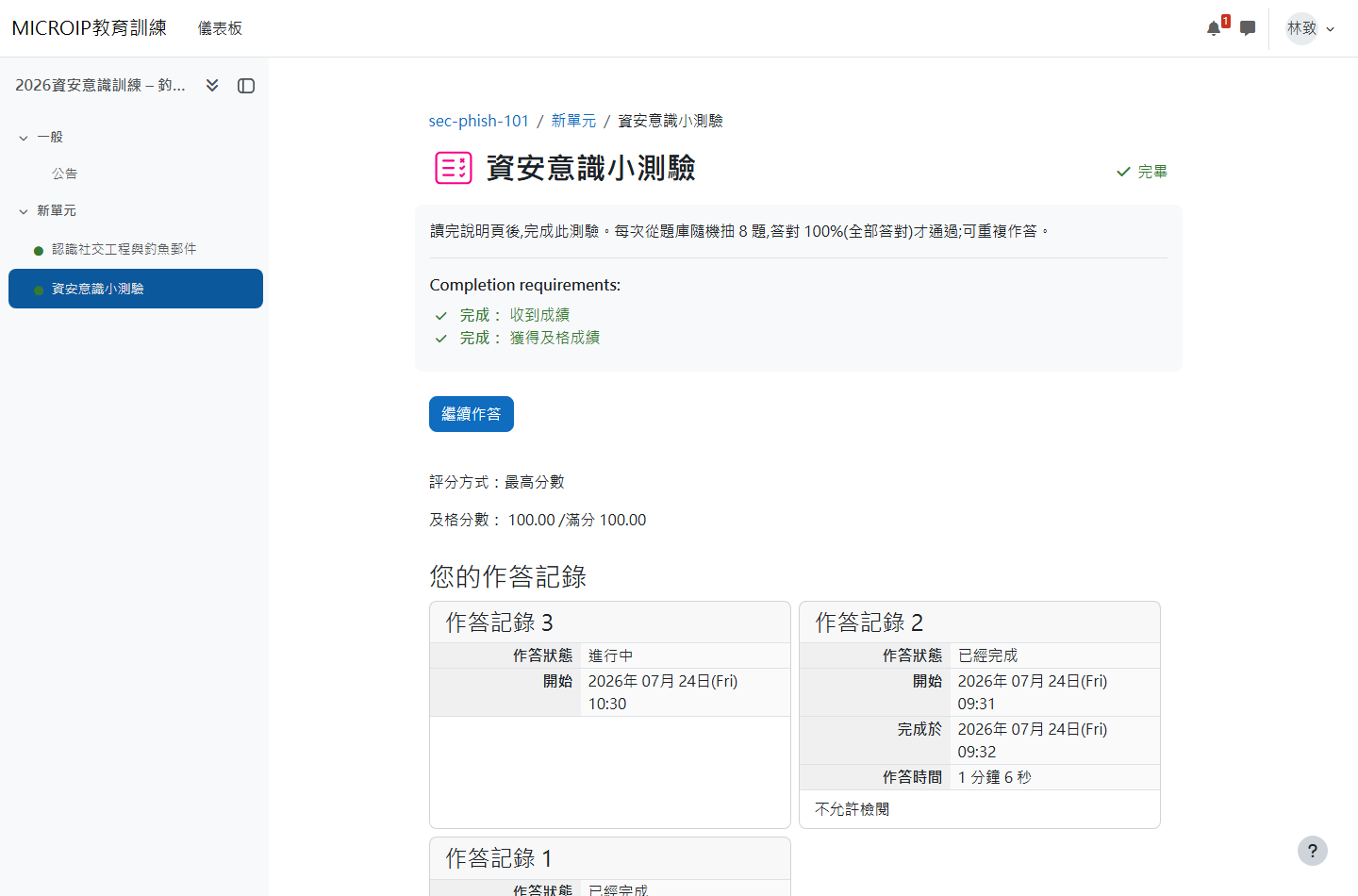
Go back to the course page, click "Security Awareness Quiz", then click the blue Attempt quiz (「作答測驗」) button to start. (If you have taken the quiz before, the button shows Re-attempt quiz (「再測驗一次」).) Each attempt picks 8 random questions from the question bank.
Step 5: Answer each question
There is one question per page. Choose your answer and click Next page (「下一頁」). The Quiz navigation (「測驗導覽」) panel on the right shows your progress. After the last question, click Finish attempt ... (「完成作答…」).
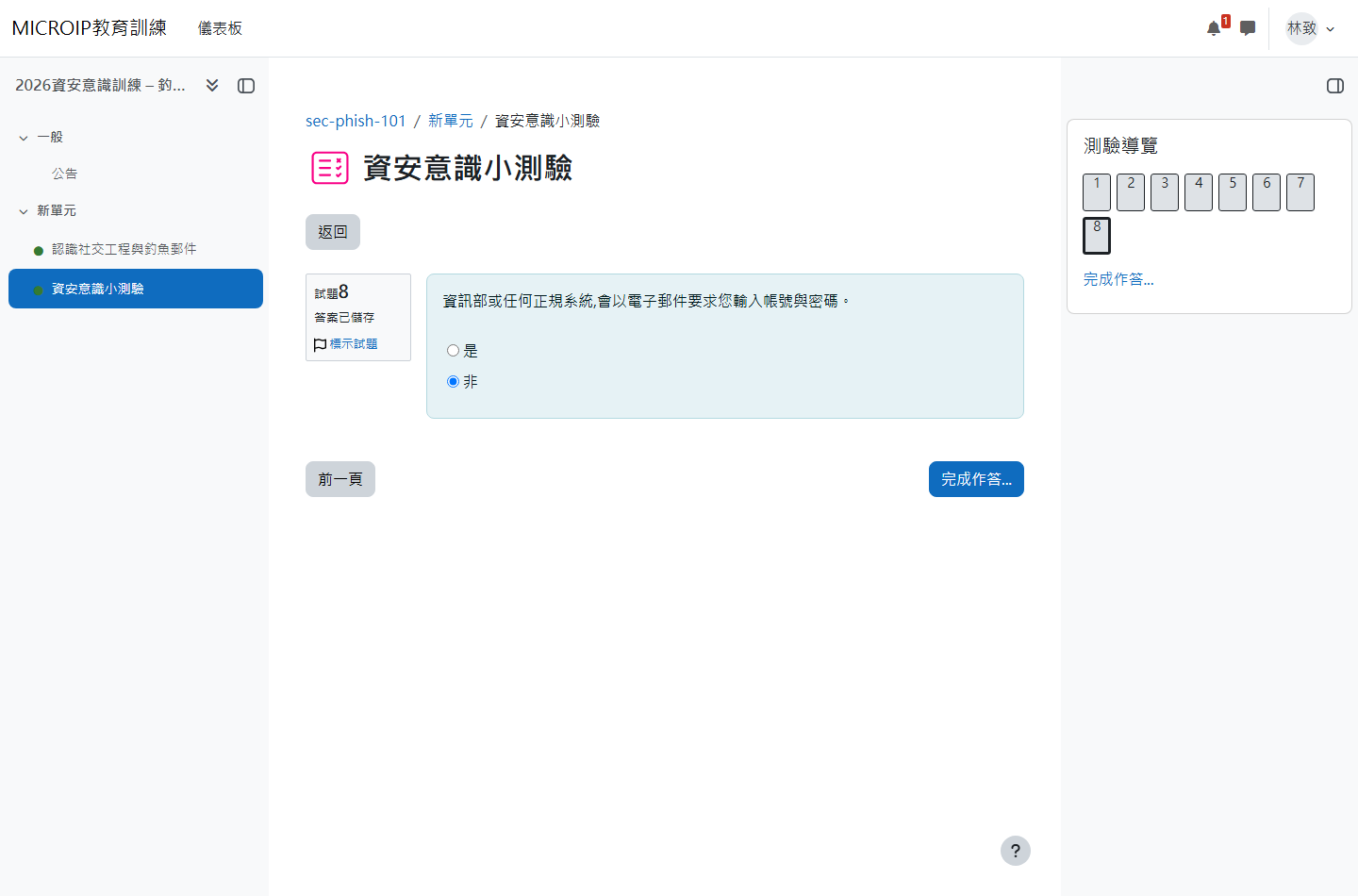
Some questions are negative questions (for example, "Which of the following is NOT a reliable way to tell?"). Read each question carefully.
Step 6: Submit the quiz
On the Summary of attempt (「作答紀錄摘要」) page, check that every question shows Answer saved (「答案已儲存」), then click Submit all and finish (「全部送出並結束」). In the confirmation window that pops up, click Submit all and finish once more.
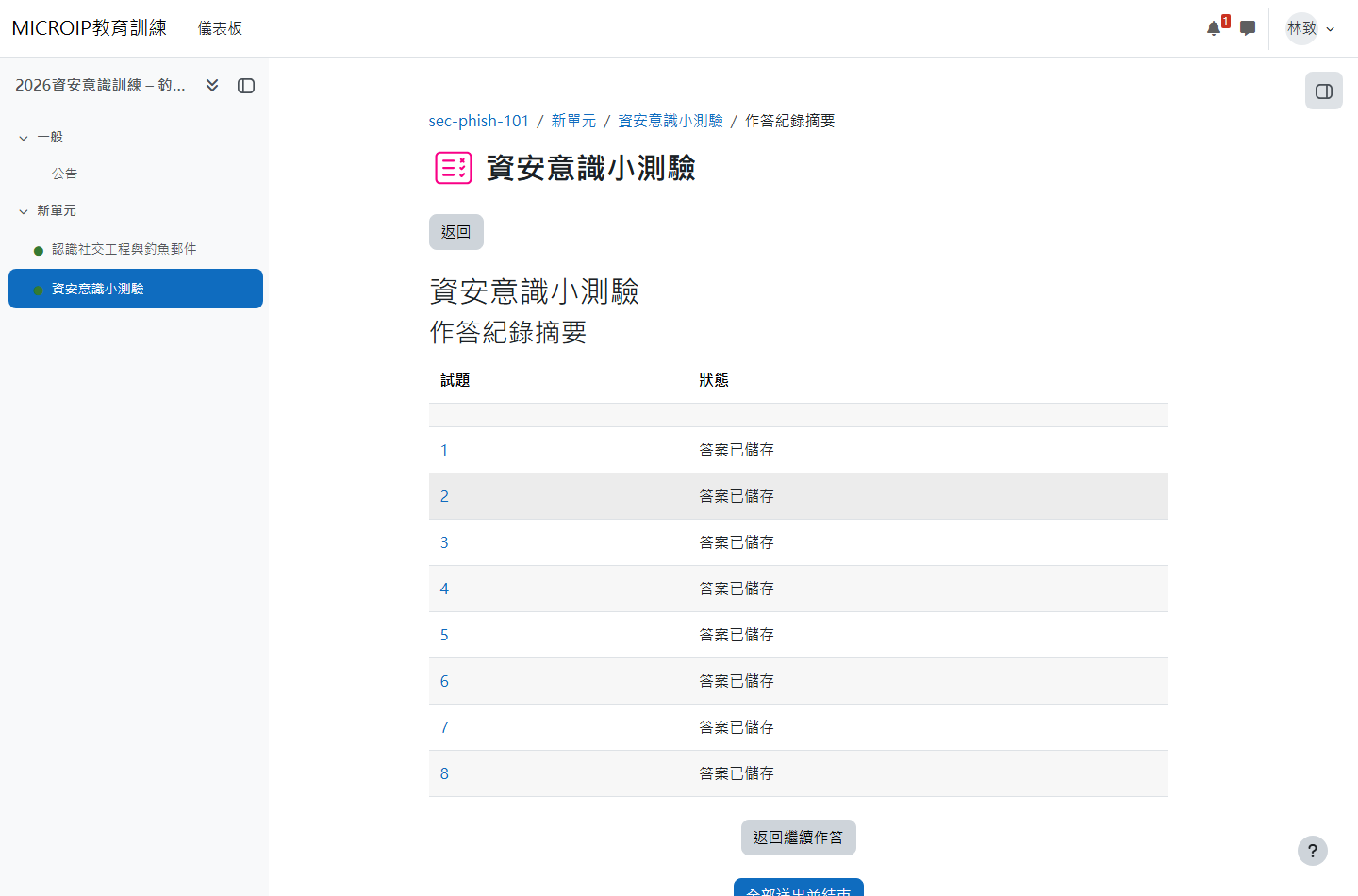
Step 7: Confirm that you passed
To pass this quiz you must score 100% (answer every question correctly). When you pass, you see the green Done: Receive a pass grade (「完成:獲得及格成績」) mark, and the course item also changes to Done.
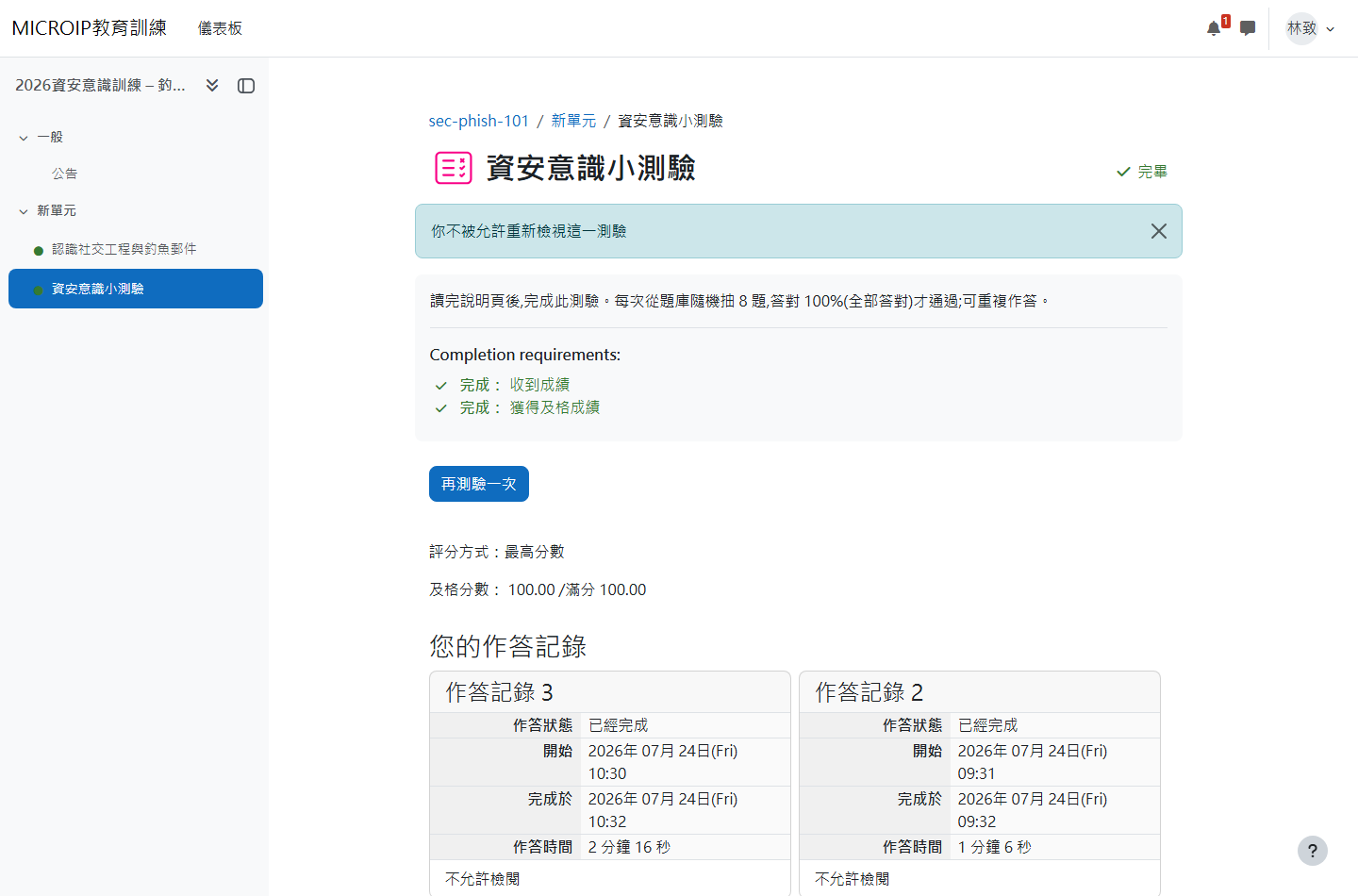
If you score less than 100%, the system shows that you did not pass. Just click Re-attempt quiz to try again. You can retake the quiz until you pass (your highest score counts).
FAQ
- Can't sign in? Make sure your user name is the part before the @ (for example
martin.lin) and your password is the same one you use to sign in to your computer. - Can't see the course? Click Dashboard at the top and you will find it under My courses.
- Keep failing the quiz? Read each question carefully (watch out for negative questions). After you submit, you can click Re-attempt quiz right away to try again; the questions are picked at random again.
- Need help? Contact the IT Department: extension 393, or e-mail [email protected].
Thank you for taking the time to complete the training and helping us keep the company's information secure.