The company VDI (virtual desktop) system lets you use a remote Windows desktop right in your browser, with no software to install. It supports Chrome, Edge and Firefox. For the best experience, use a desktop or laptop computer.
- On the company network: just open your browser; no VPN needed.
- Outside the company (at home or traveling): connect to GlobalProtect VPN first, then open VDI. For VPN setup, see the VPN Connection Setup Guide.
Step 1: Sign in
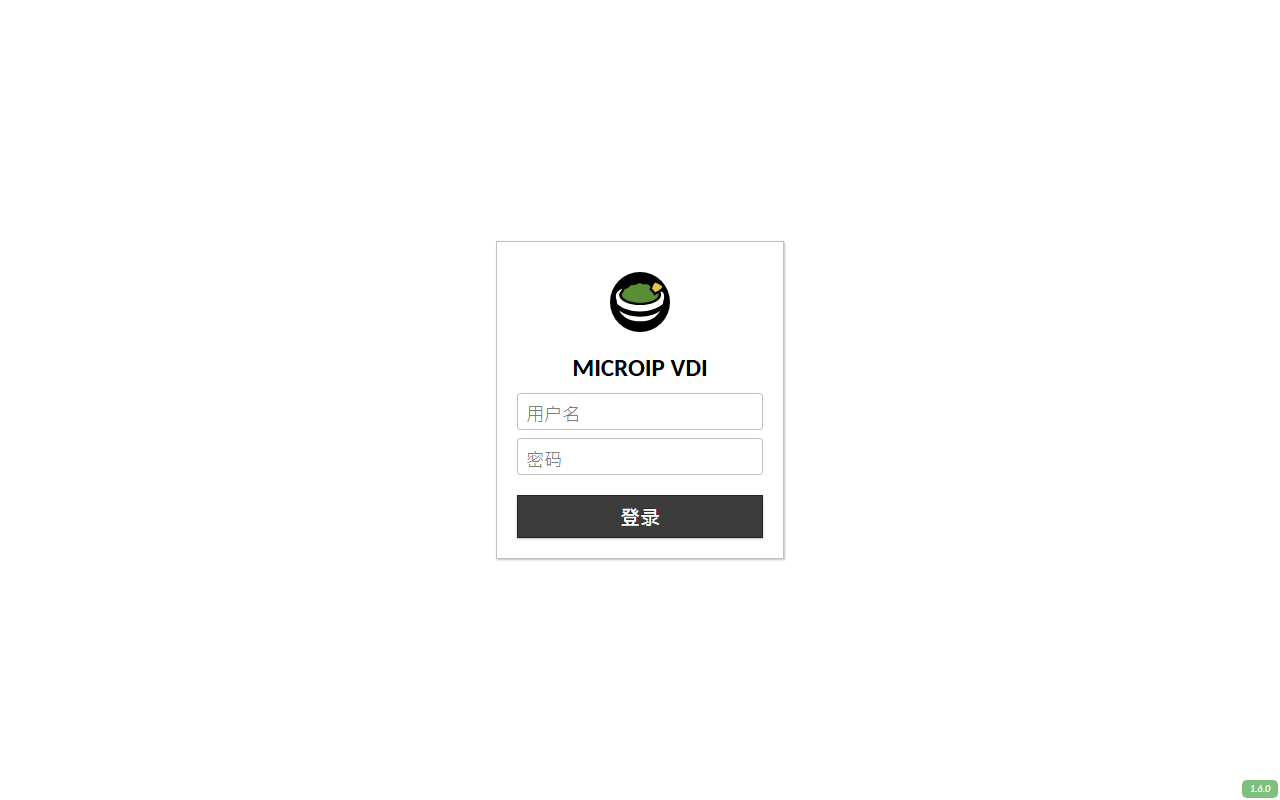
Open your browser and go to https://vdi.micro-ip.com. Sign in with your company Windows account (without @micro-ip.com) and the password you use to sign in to your computer.
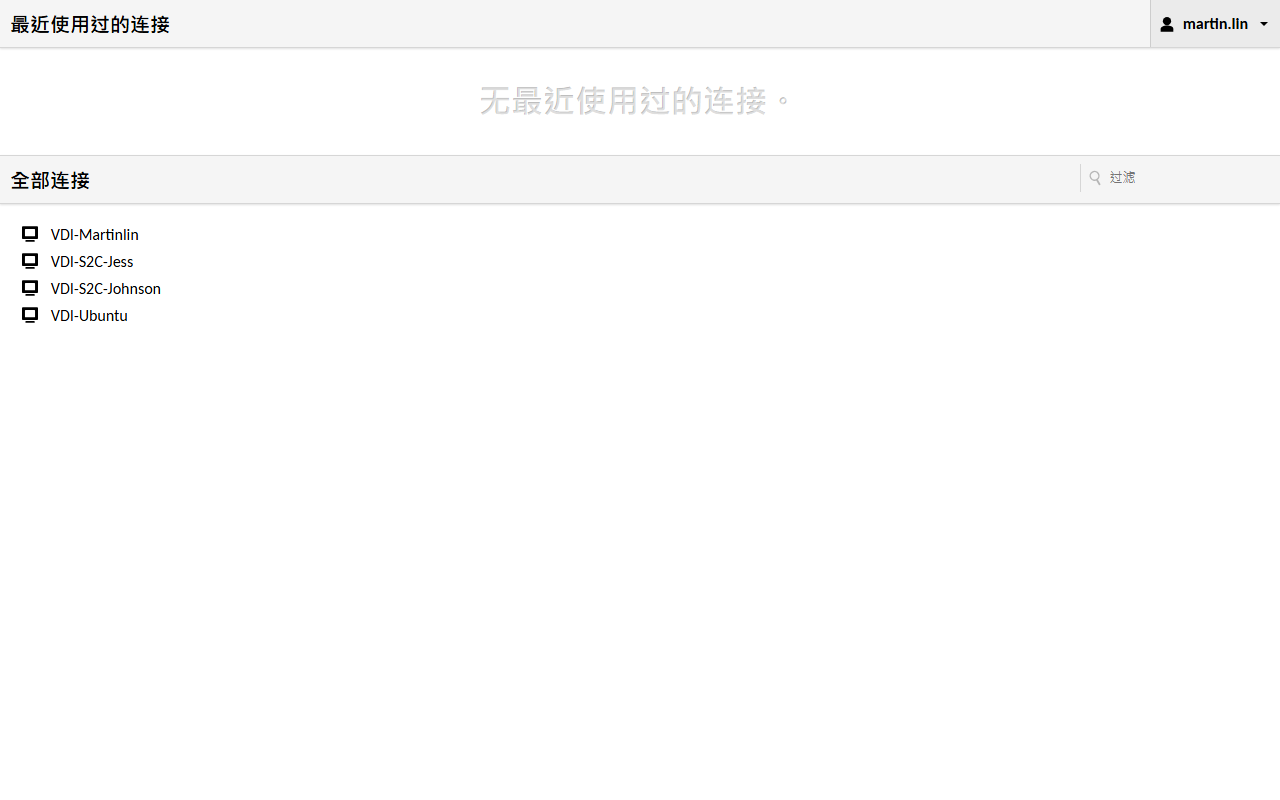
After signing in, you see the list of connections available to you. Click any item to connect. Setting up the connection usually takes 5–15 seconds, and the screen may go black briefly; please wait.
Step 2: Use the remote desktop
Once connected, the remote desktop appears right in your browser. The mouse, keyboard and scroll wheel work exactly as they do in Windows normally.
Guacamole menu
Press Ctrl + Alt + Shift (or click the small arrow at the left edge of the screen) to open the Guacamole side menu. It contains the clipboard, input method settings and a button to go back to the home screen.
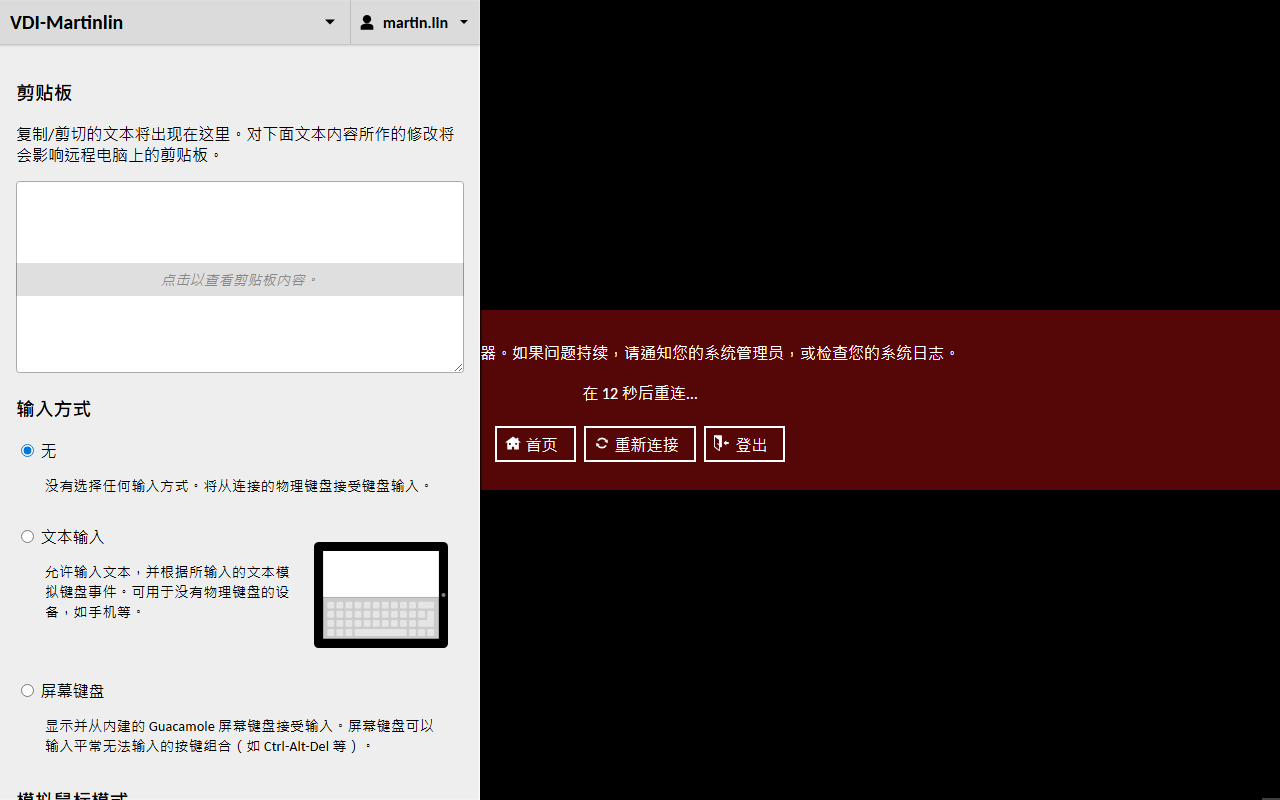
For full screen, click the full-screen icon in the menu, or press F11.
Step 3: Use the clipboard
The VDI clipboard works one way only: you can copy text on your own computer and paste it into the remote desktop, but text from the remote desktop cannot be copied back to your computer (due to the data security policy). File upload and download are also disabled.
Pasting from your computer into the remote desktop: copy the text on your computer (Ctrl + C), then press Ctrl + V in the remote desktop. If it does not paste, open the side menu (Ctrl + Alt + Shift), check that the Clipboard field shows the text you copied, and then paste in the remote desktop. Firefox may not sync automatically; in that case, paste the text into the menu manually.
Step 4: Sign out
We recommend signing out the standard Windows way: in the remote desktop, click Start → Power → Sign out. This properly ends the session so it does not keep using system resources.
If you are only stepping away for a while, you can also open the side menu and click Home to go back to the connection list. The remote desktop keeps running in the background, and you can pick up where you left off next time you connect.
FAQ
Blurry screen or poor resolution?
Open the side menu (Ctrl + Alt + Shift) → Settings, adjust the display size or DPI, and reconnect.
Problems typing Chinese? Switch the input method directly in the remote desktop, or type the Chinese text in the Clipboard field of the side menu and then copy and paste it.
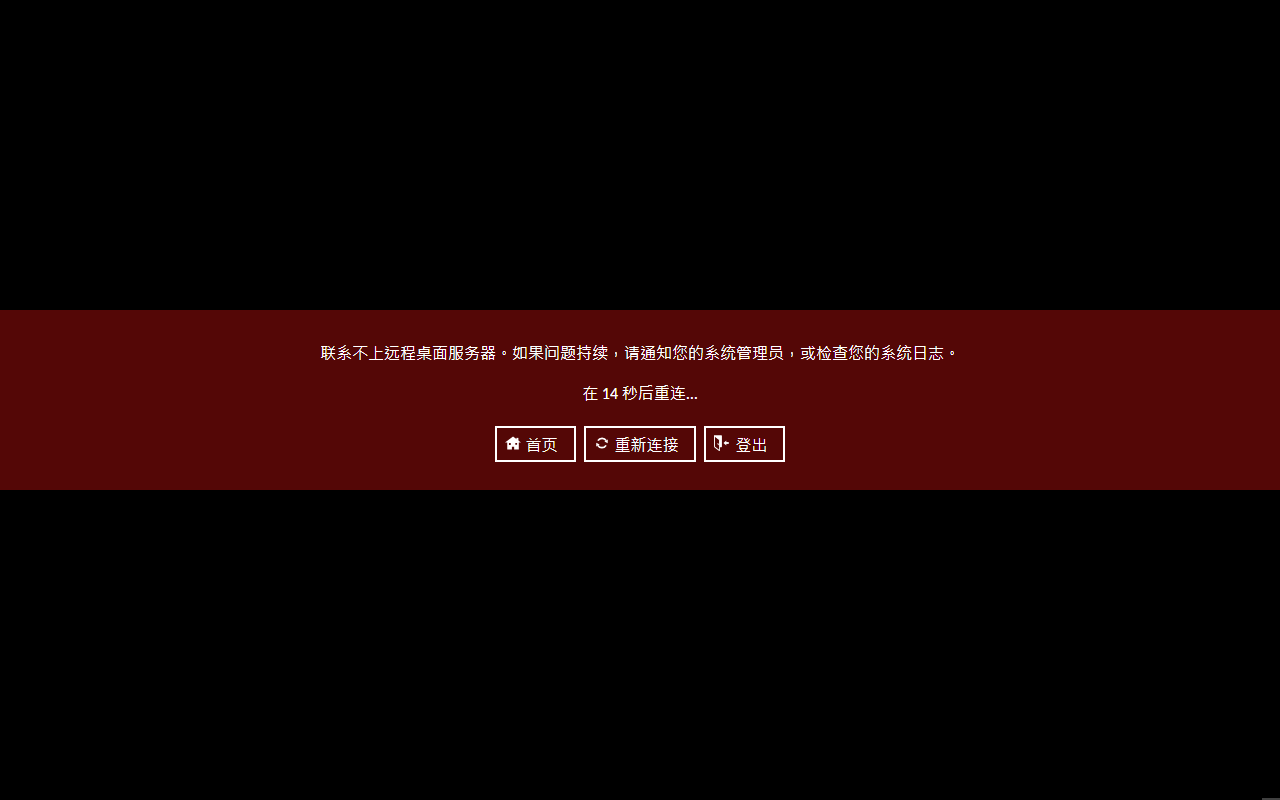
Connection dropped suddenly? Guacamole shows an error screen with a Reconnect button; clicking it usually restores the connection. If it keeps failing, press F5 to refresh the page and try again. If that still does not work, contact IT support.
Forgot your password? VDI uses your Windows domain password. To reset your password, call the IT department at extension 393.
Can I use it on a phone or tablet? Yes, but the experience is not as good as on a computer. On a touchscreen, tap with one finger instead of left-clicking, and pinch with two fingers to zoom.
Can I open several connections at the same time? Yes. Open several browser tabs and connect each tab to a different desktop.