User Account and Access Request: Step-by-Step Guide
Welcome to the company. If you need an account or access for a company system (such as Email, the AD domain or VPN), follow the steps below to complete the request in BPM.
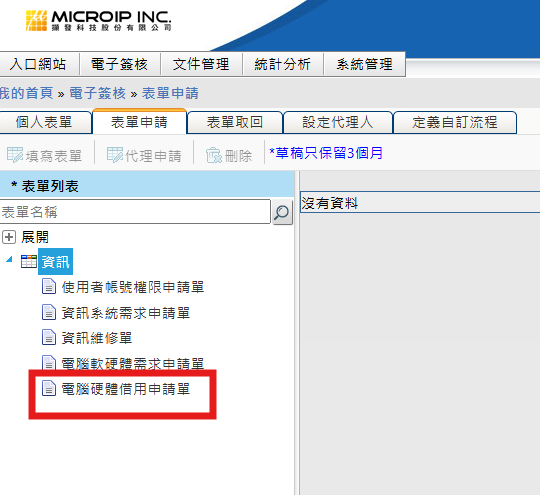
1. How to open the form
Navigation path:
In the left menu, click E-Signing (「電子簽核」)
Choose Form Application (「表單申請」)
Expand the categories and click IT (「資訊」)
Select User Account and Access Request Form (「使用者帳號權限申請單」)
Click Fill In Form (「填寫表單」) at the top right
2. How to fill in the form (see the example screenshot)
Once the form opens, fill it in as follows (see the matching fields below):
Subject (「主旨」, required):
Describe exactly what you need, for example:
Email: Enable Email on my mobile phone.Account Request (「帳號申請」):
- Tick [Add] (「新增」) as needed.
- System/Service Items (「系統服務項目」): tick the systems you need (such as AD domain, E-mail, BPM, SAP).
Required Date (「需求日期」): choose the date you expect to need it.
Access Request (「權限申請」):
- Tick [Add].
- System/Service Items: tick the access you need (E-mail is ticked in the screenshot).
- Access Details (「權限說明」): describe the request in detail, for example:
Email: Enable Email on my mobile phone.
Purpose (「用途說明」, required):
- Explain why you need this account or access. Example:
Email: Enable Email on my mobile phone.
- Explain why you need this account or access. Example:
3. Submit and approval
- Attachments (「附件檔案」): if you have supporting documents or an approval e-mail from your manager, upload them below.
- Submit: when everything is correct, click Submit (「送出」) to start the approval process.